Automate Dynamics 365 Deployment using Azure DevOps CI/CD (Build & Release Pipeline)

In this blog, I will show you how to implement CI/CD for Dynamics 365 CE and how can we deploy the solution from one source (in my case it is Dev) environment to multiples CE environments.
We Have one Dev and two target environments where I will be deploying the managed build from Dev.

Build Pipeline

  1. Go to the Azure Devops and select your project.

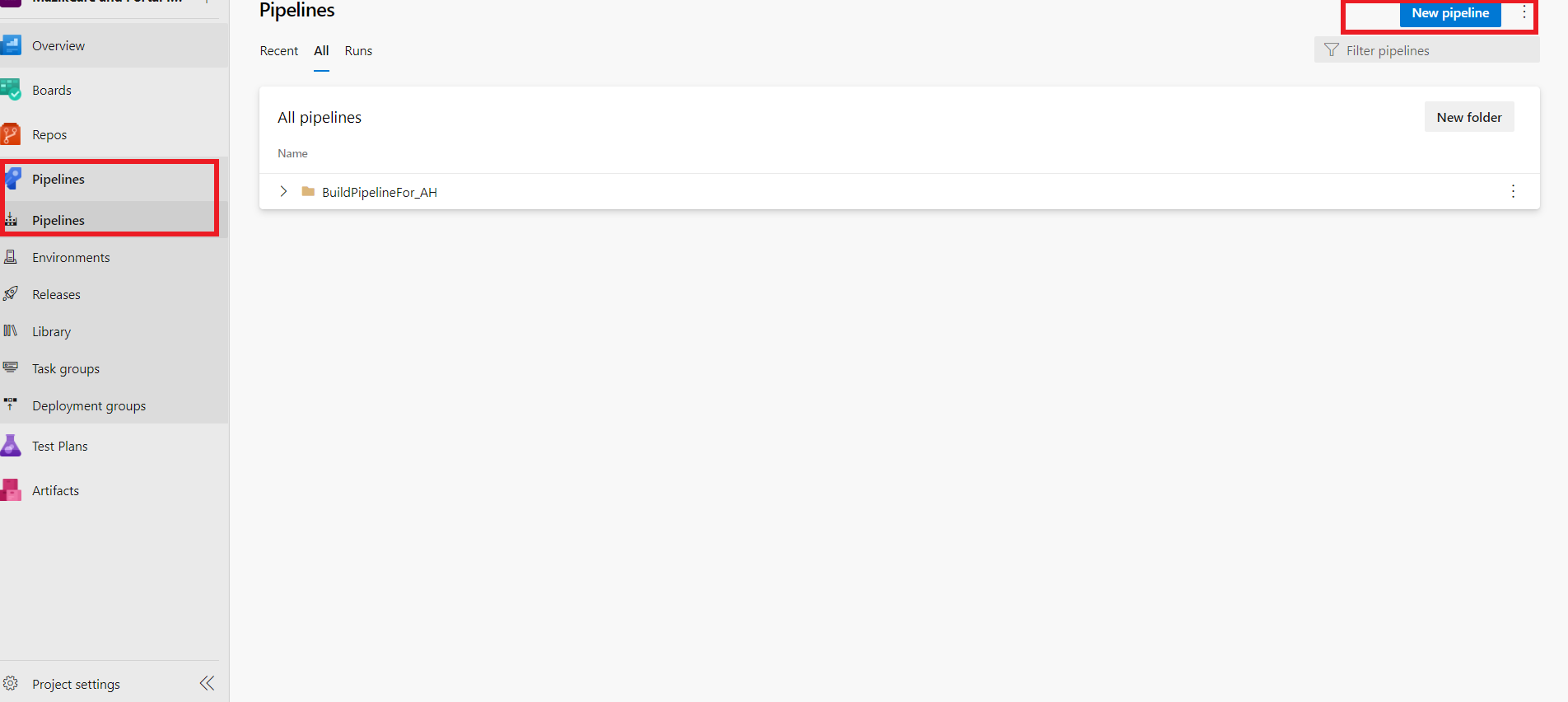
  2. Navigate to the Pipeline and click on the “Create Pipeline”.

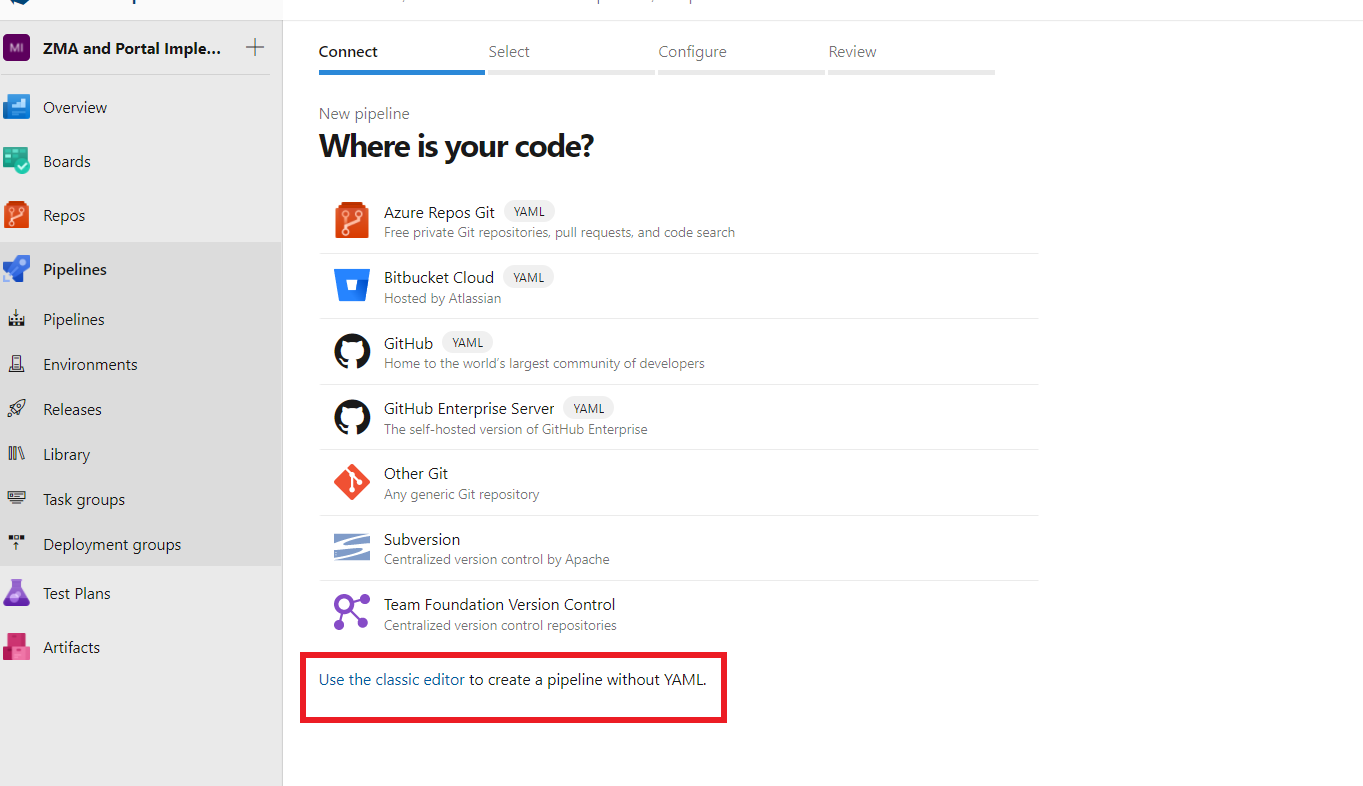
  3. Now click on “Use the Classic Editor” and then you can configure the Pipeline through the graphical UI.

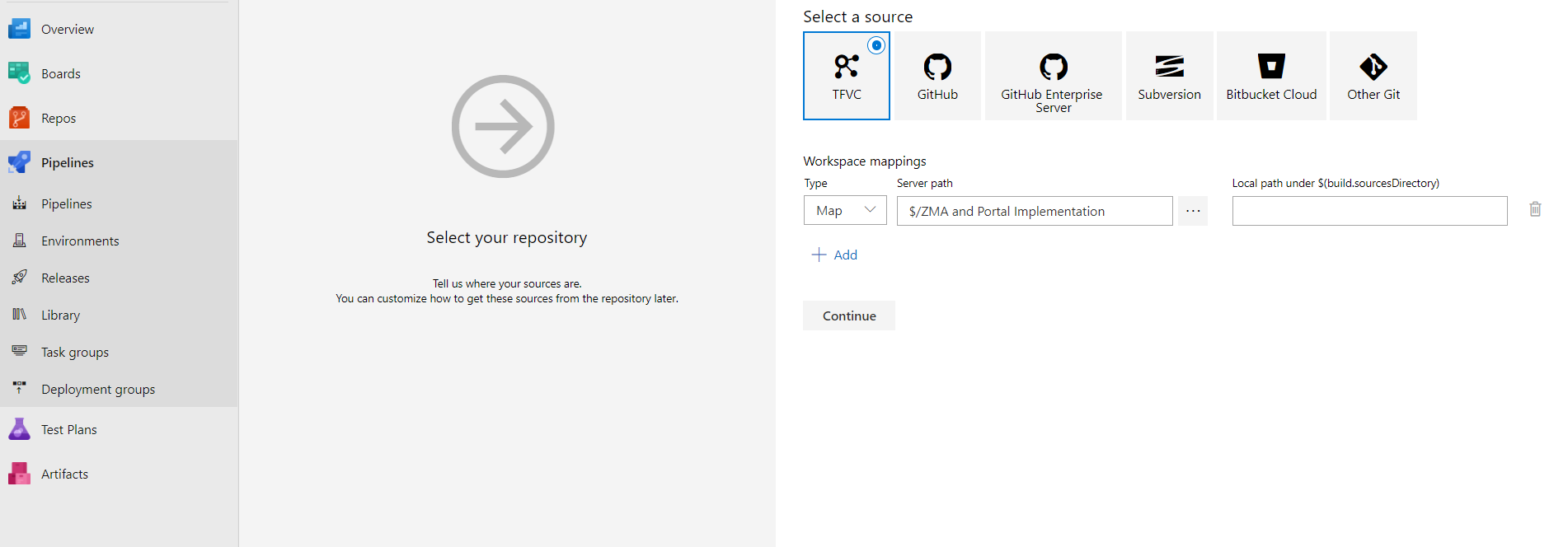
  4. Now you need to select TFVC/Repository although I won’t be using any repository in our Pipeline but this is the mandatory step to move forward but you can use TFVC/Repository to save your solution on the server for the backup if you want.

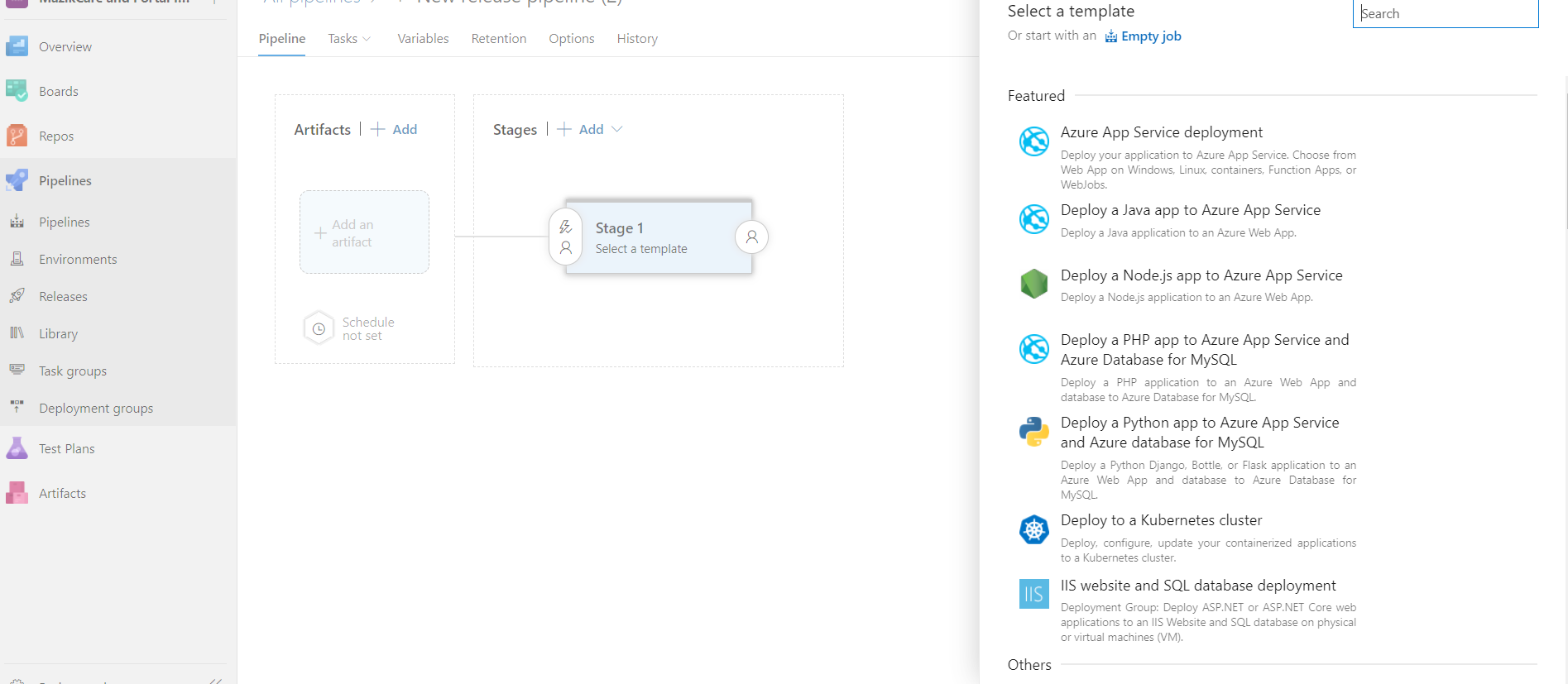
  5. Select “Empty Job” to start building your Pipeline.
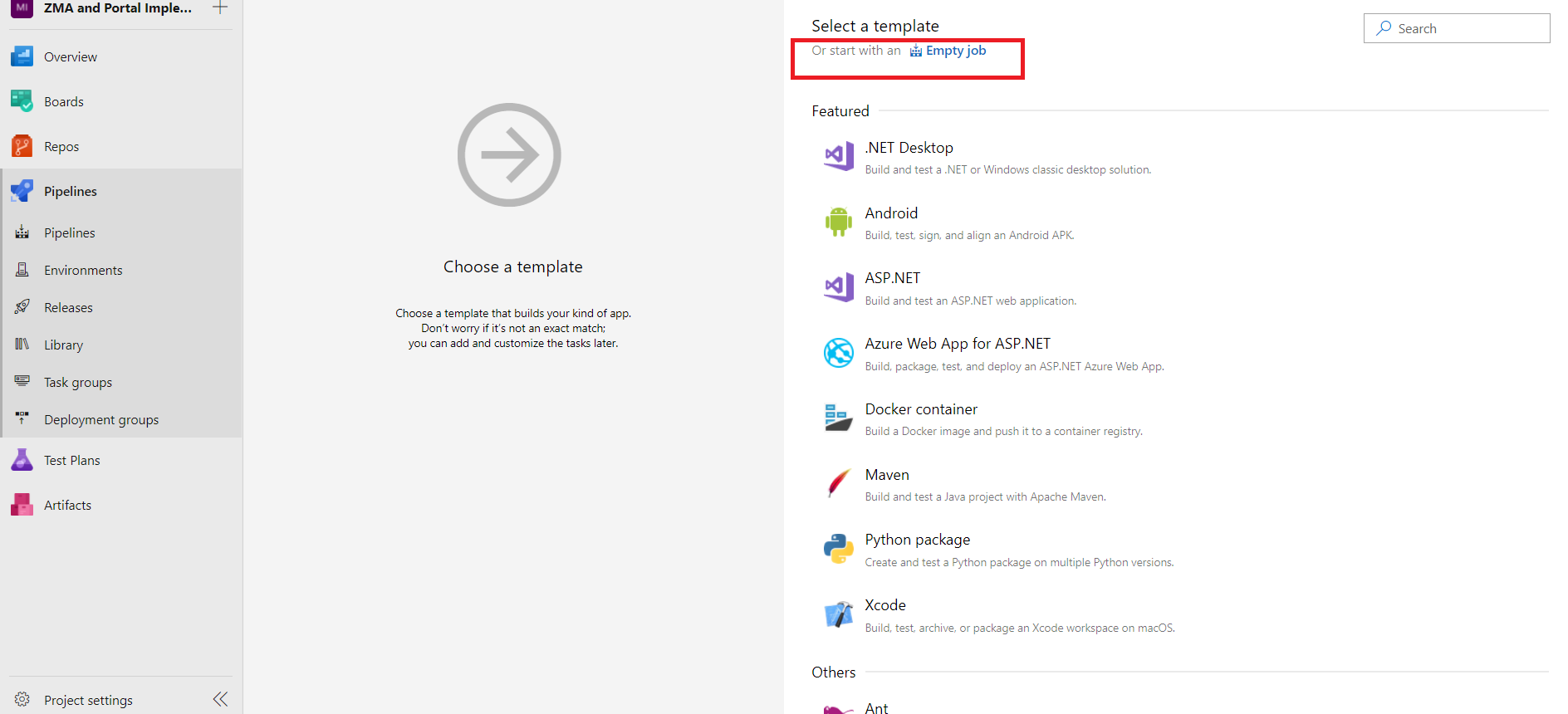

  6. You will be seeing the Empty Job screen, Rename the Agent Job.
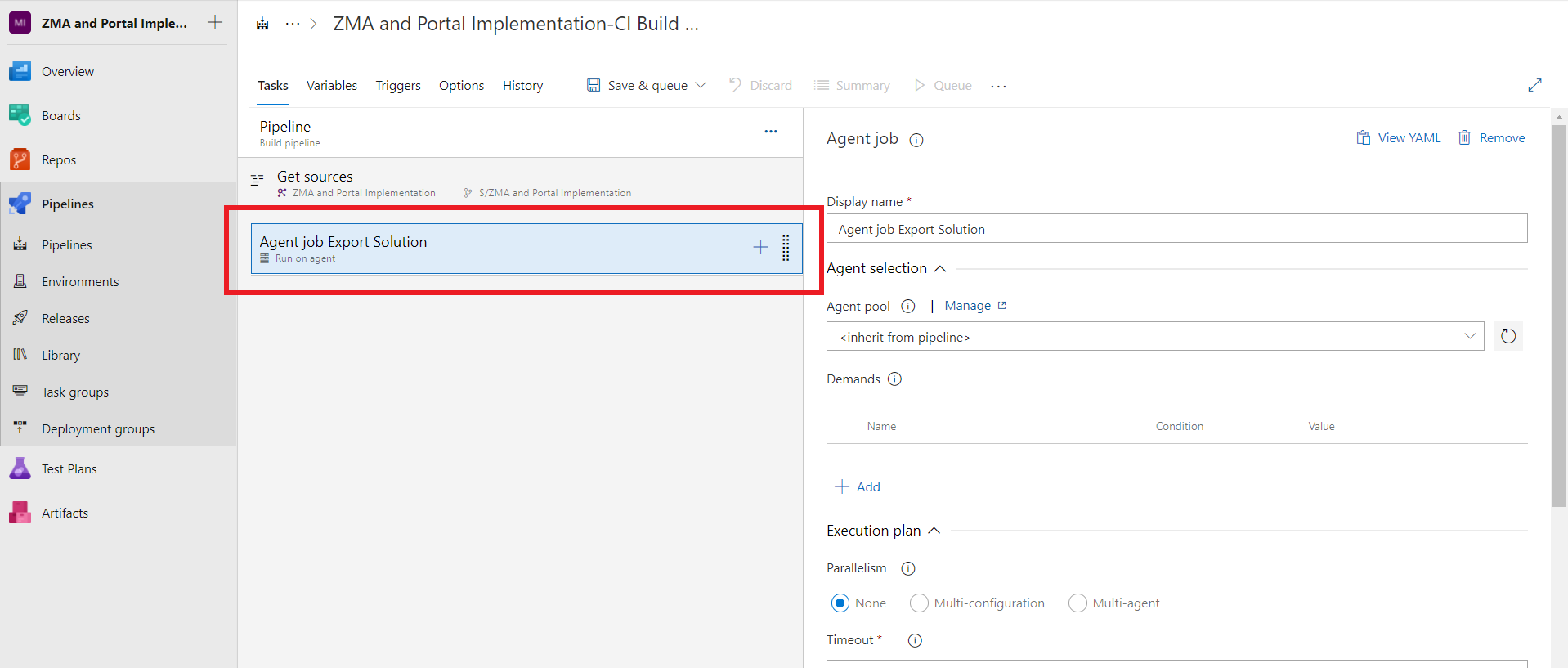
  7. Click on + and add the new task and search for “Power platform Tools”.
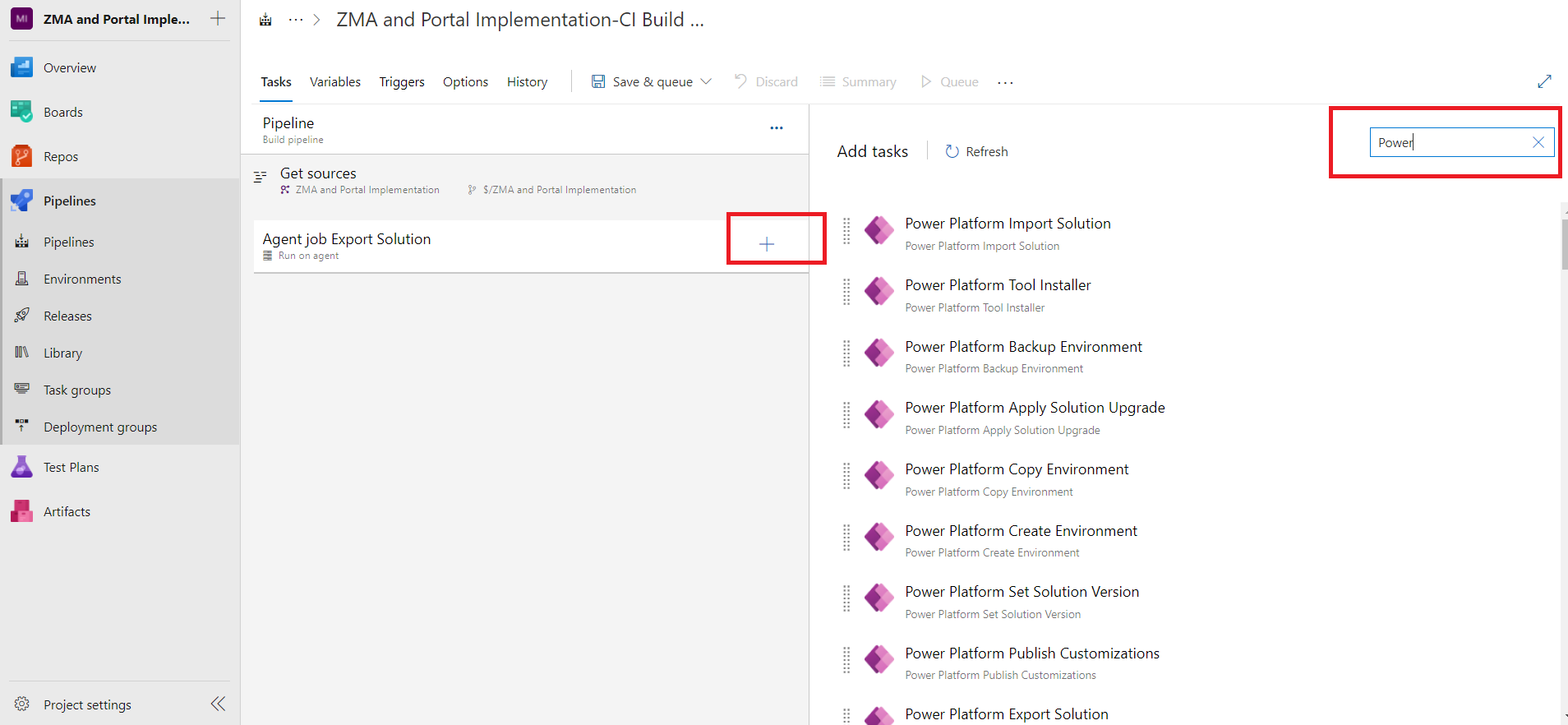
    Note: If “Power platform Tools” is not already installed in your environment, you will get the option to download it from “Marketplace” for free.

  8. Add the following tasks

    “Power Platform Tool Installer” will install the Power platform tool in the Agent Job.

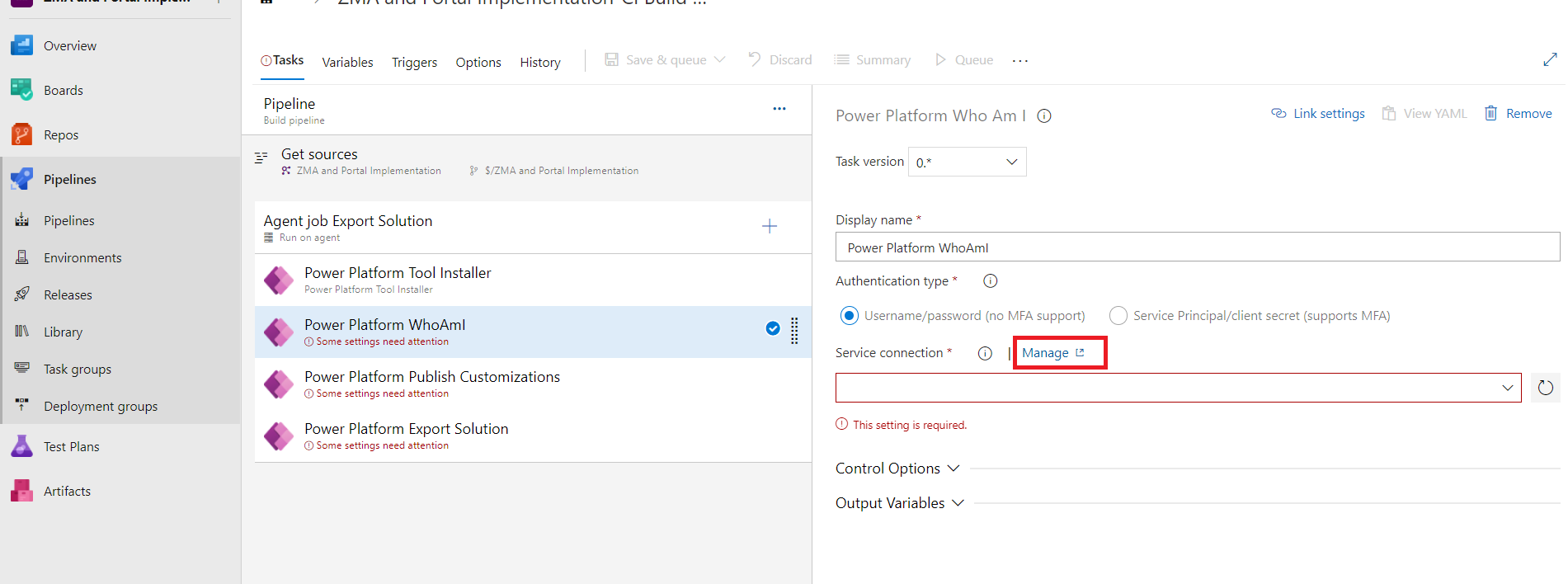
    “Power Platform WhoAmi” this is just to verify the connection of the environment.

    But if the connection string is not already configured it can be done by
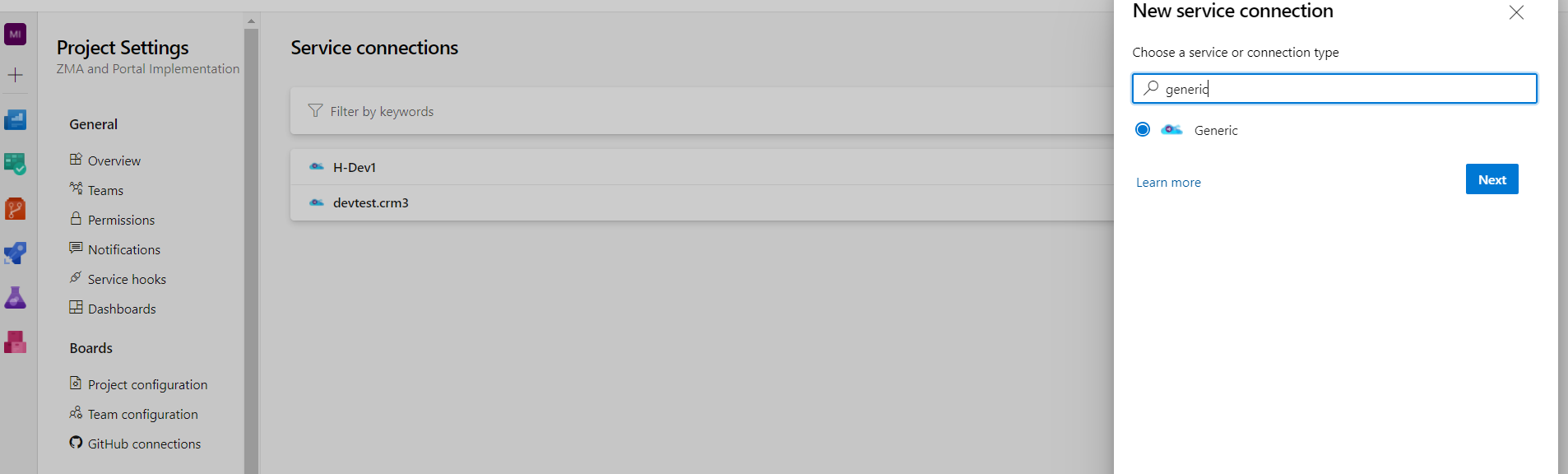
    Click on “Manage” as highlighted in above image and you will be redirected to the Project Settings page, there you need to click on “New service connection”
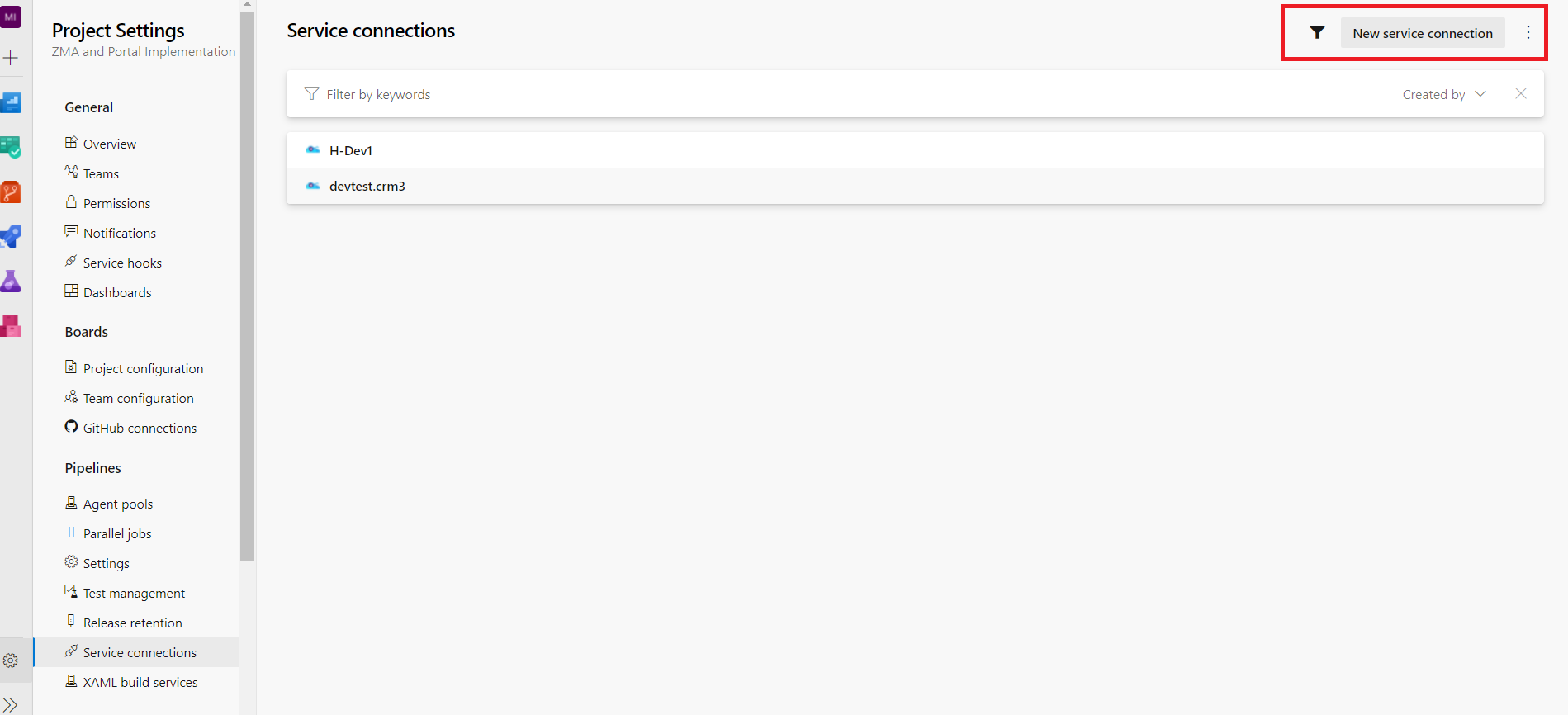


    Now search for Generic connection


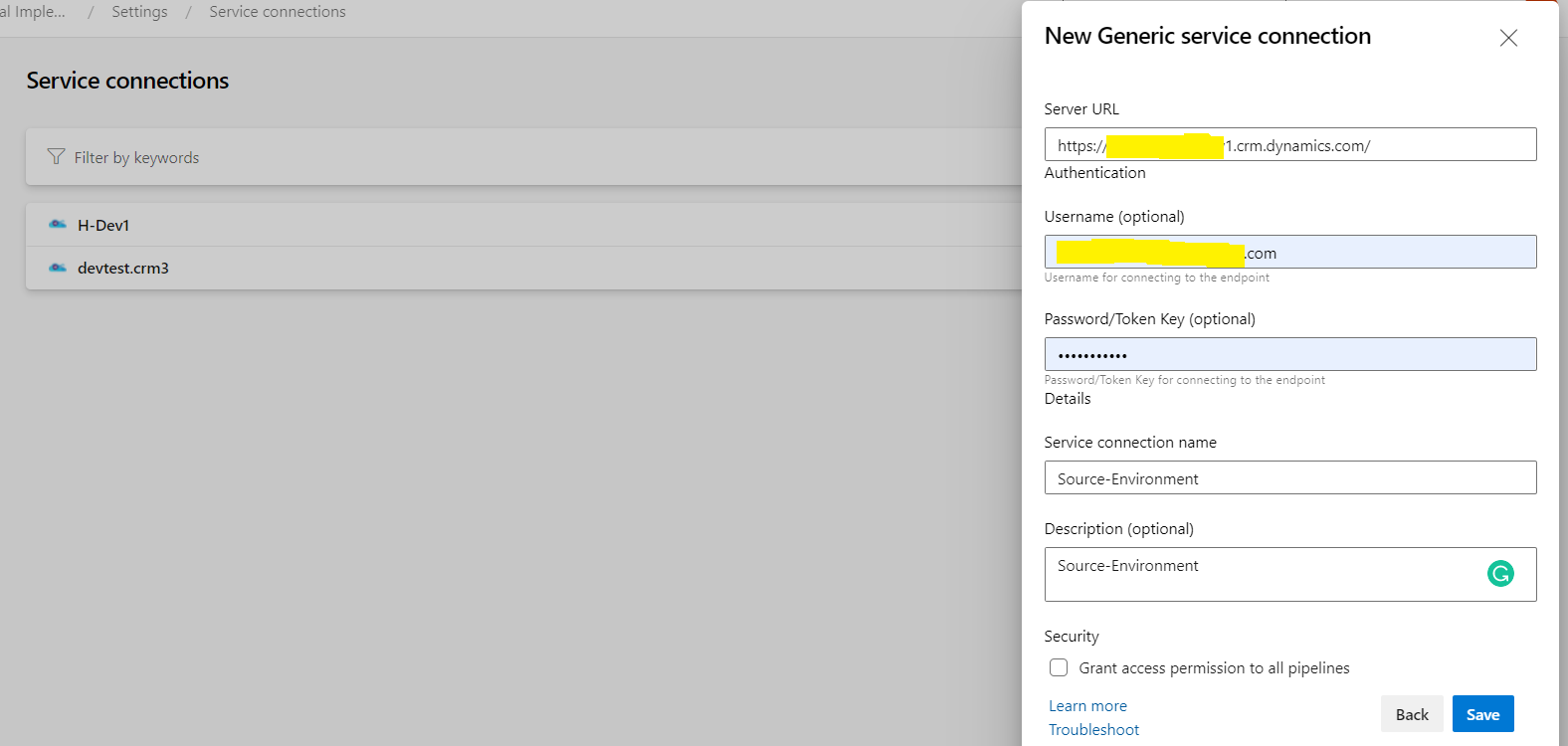
    Now you need to provide environment url, username, password and set any connection name


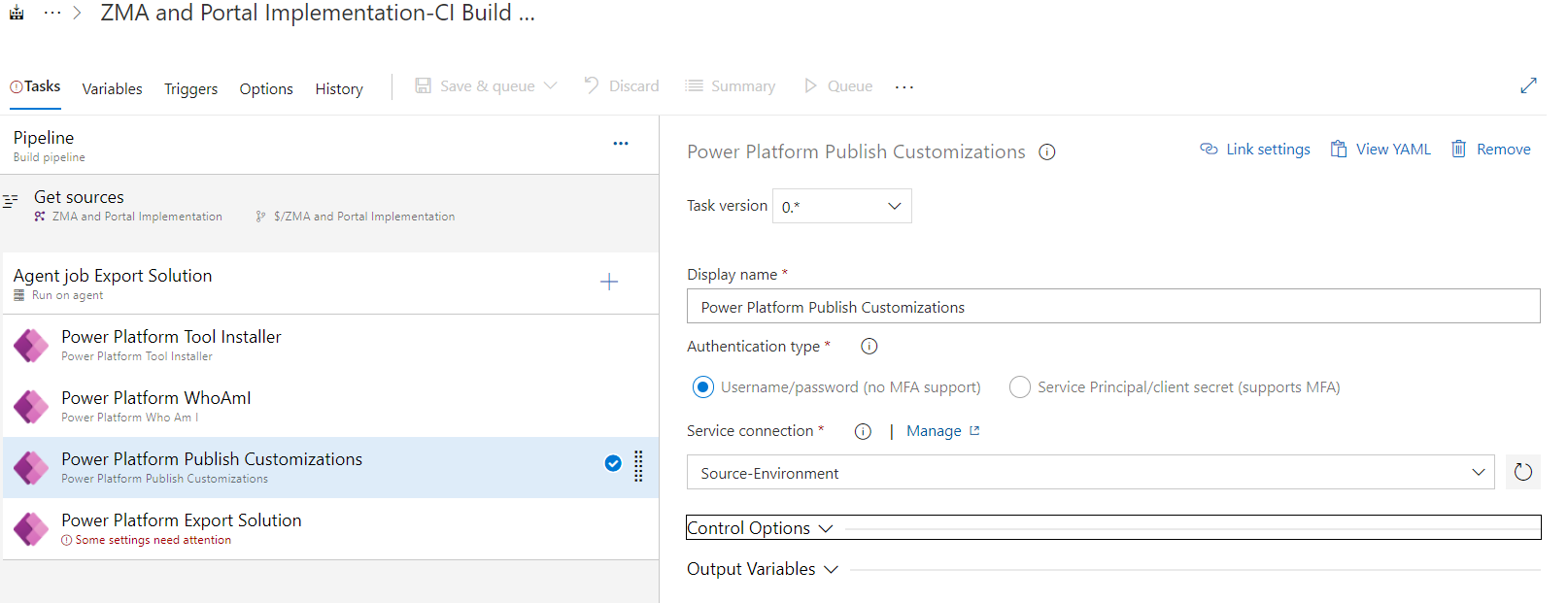
    Now if you go back to the Build Pipeline tab and only refresh the Service Connection drop down you should be able to see the above connection you just have created and you can select it for all the tasks.

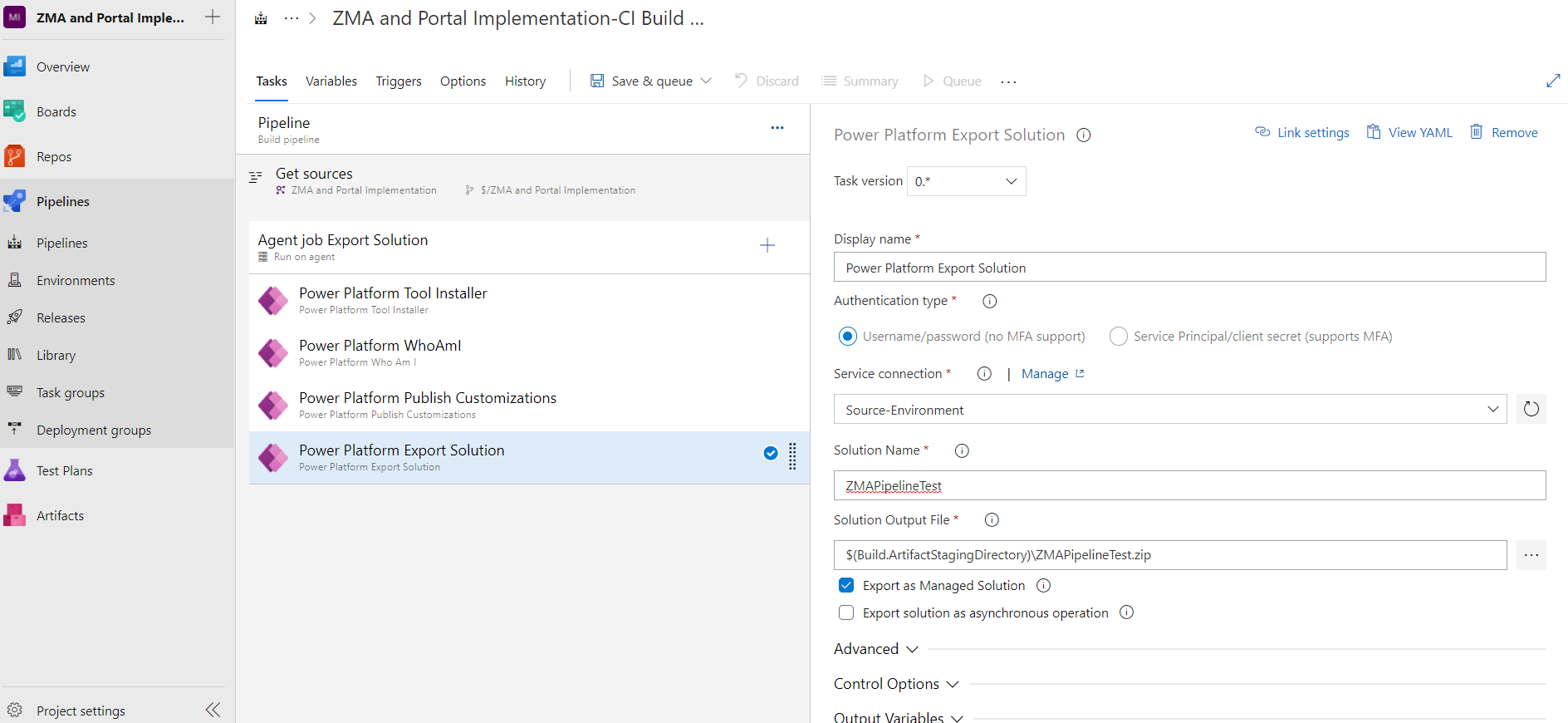
  9. Now in Export Solution task we need to provide the solution name, solution output path and I will be exporting this solution as Managed to deploy in to the test environments.


    D365 CE Solution
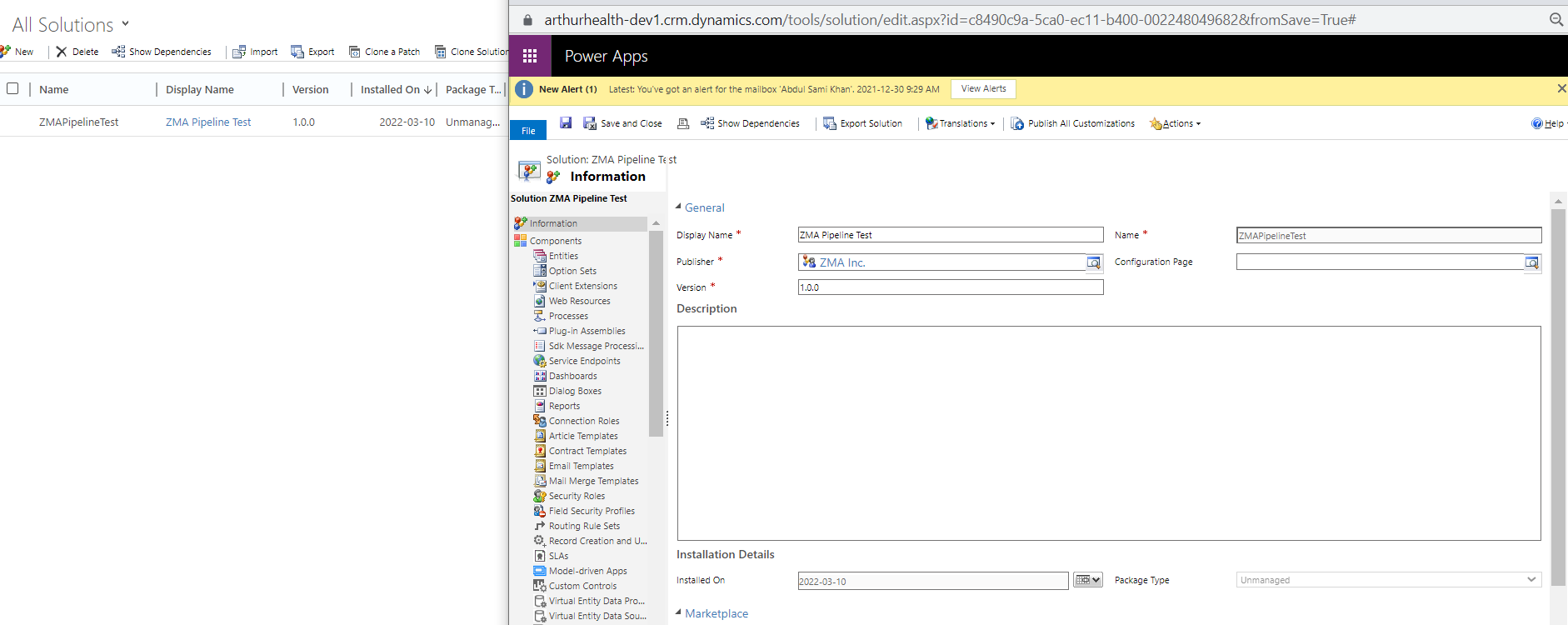

  10. Now you need to add one more task “Publish build artifact” that will publish the artifact which will be created in previous step
    In “Path to publish”, add the output path of the previous step: $(Build.ArtifactStagingDirectory)


    Now your Build Pipeline is completed and we can start the Release Pipeline!


Release Pipeline

We will use the Release Pipeline to import the exported solution from build pipeline in multiple target environments .

  1. From the side menu go to “Releases” tab and create a New Release Pipeline.
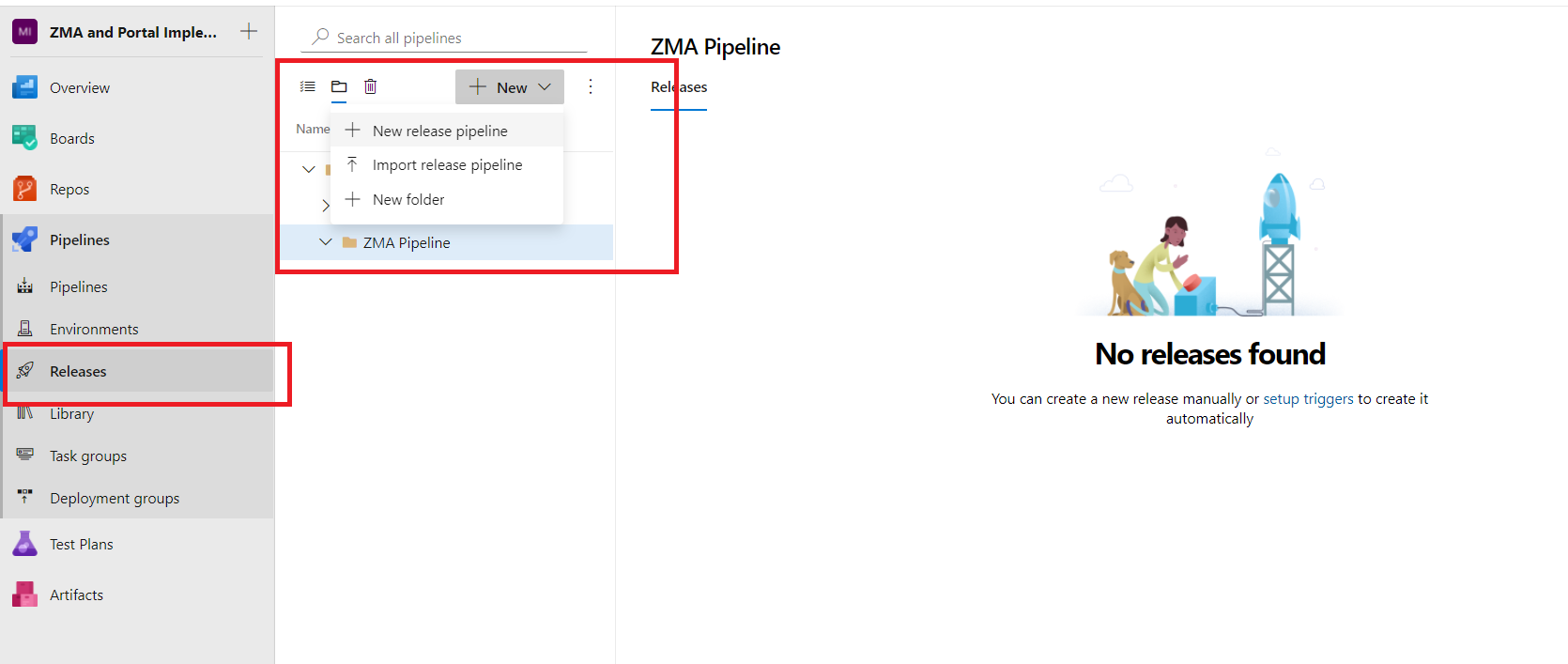

  2. We will start with the Empty Job.


  3. Add an artifact, select the same project and in source select the above created Build Pipeline.
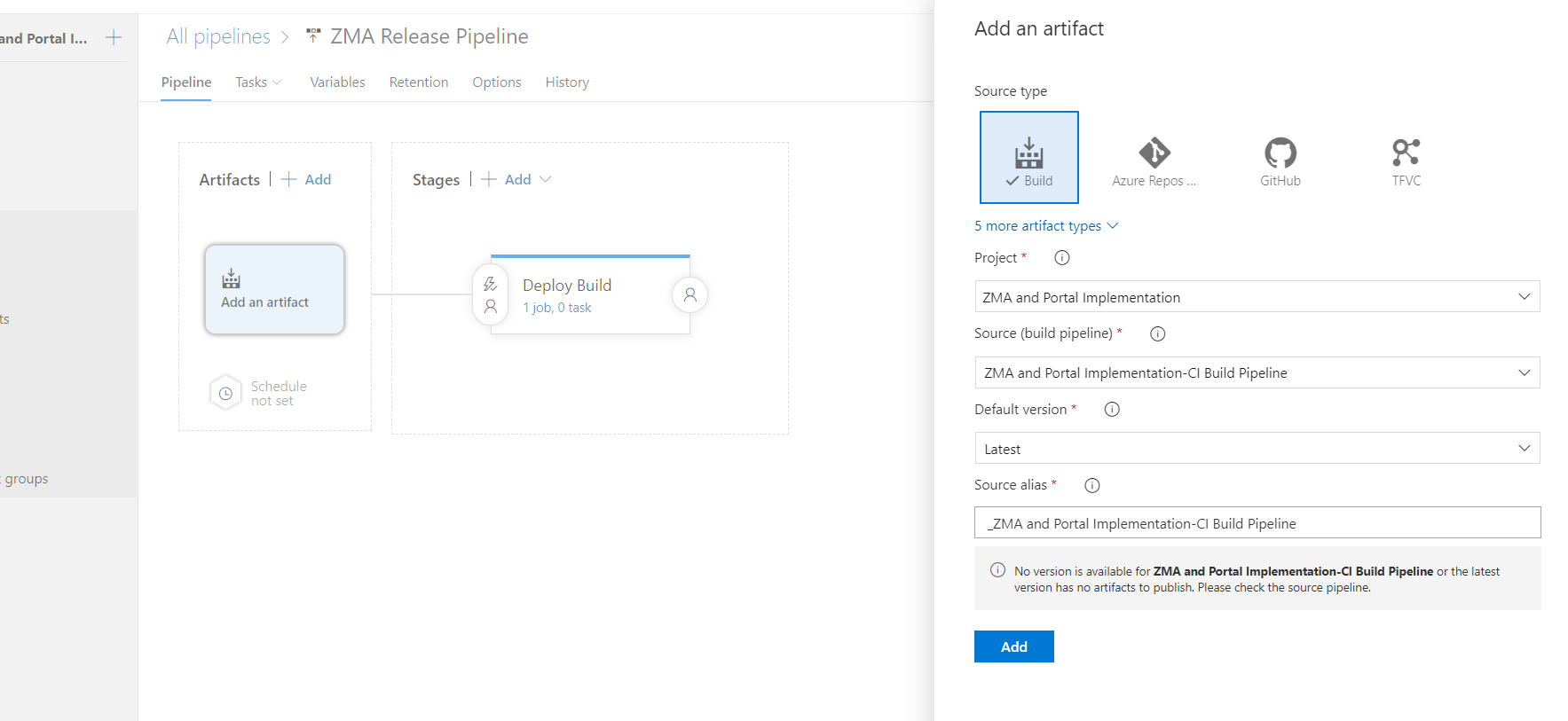

  4. I have renamed the stage name and agent job display name.
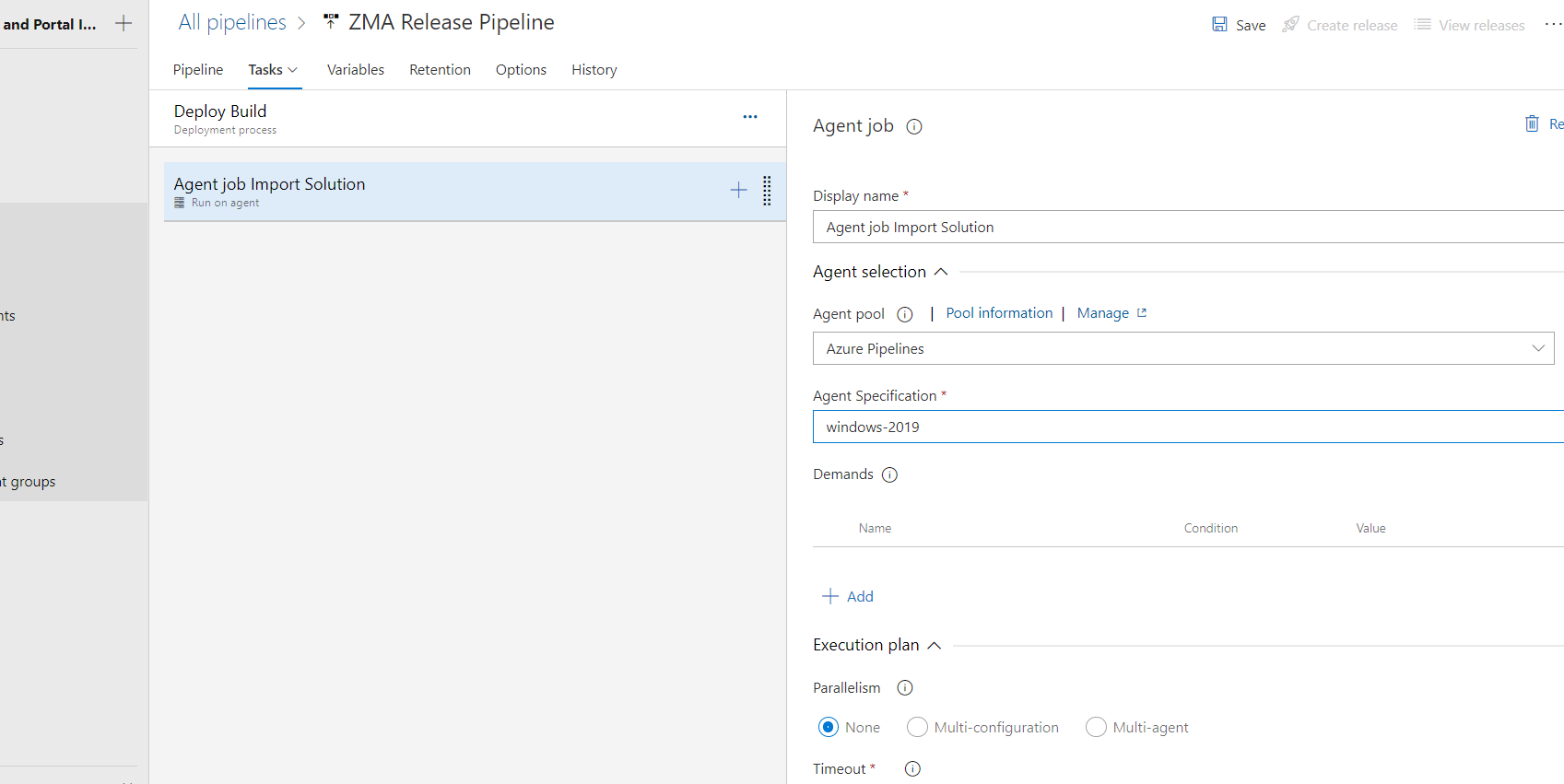

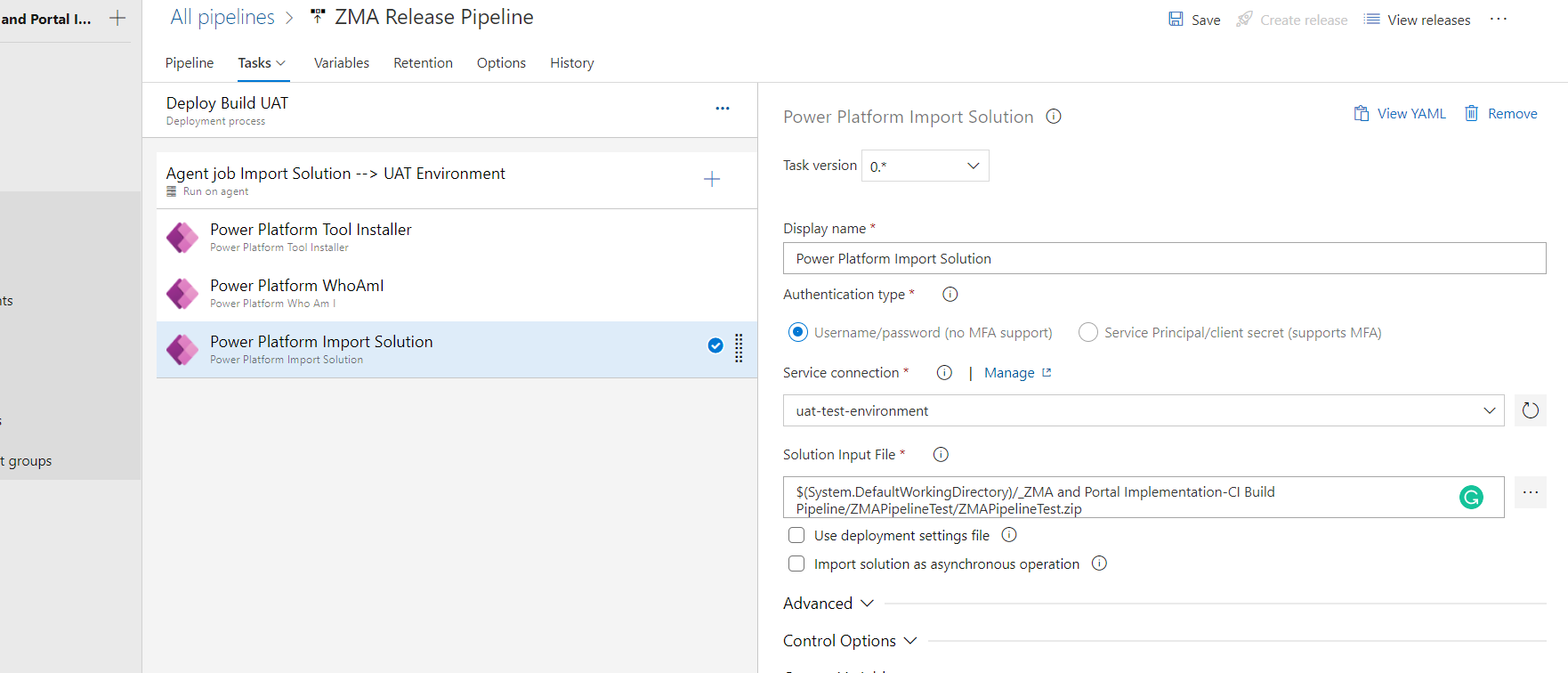
  5. Now you need to add below tasks to import the solution in destination environment and I have already discussed the first two steps in Build Pipeline steps.
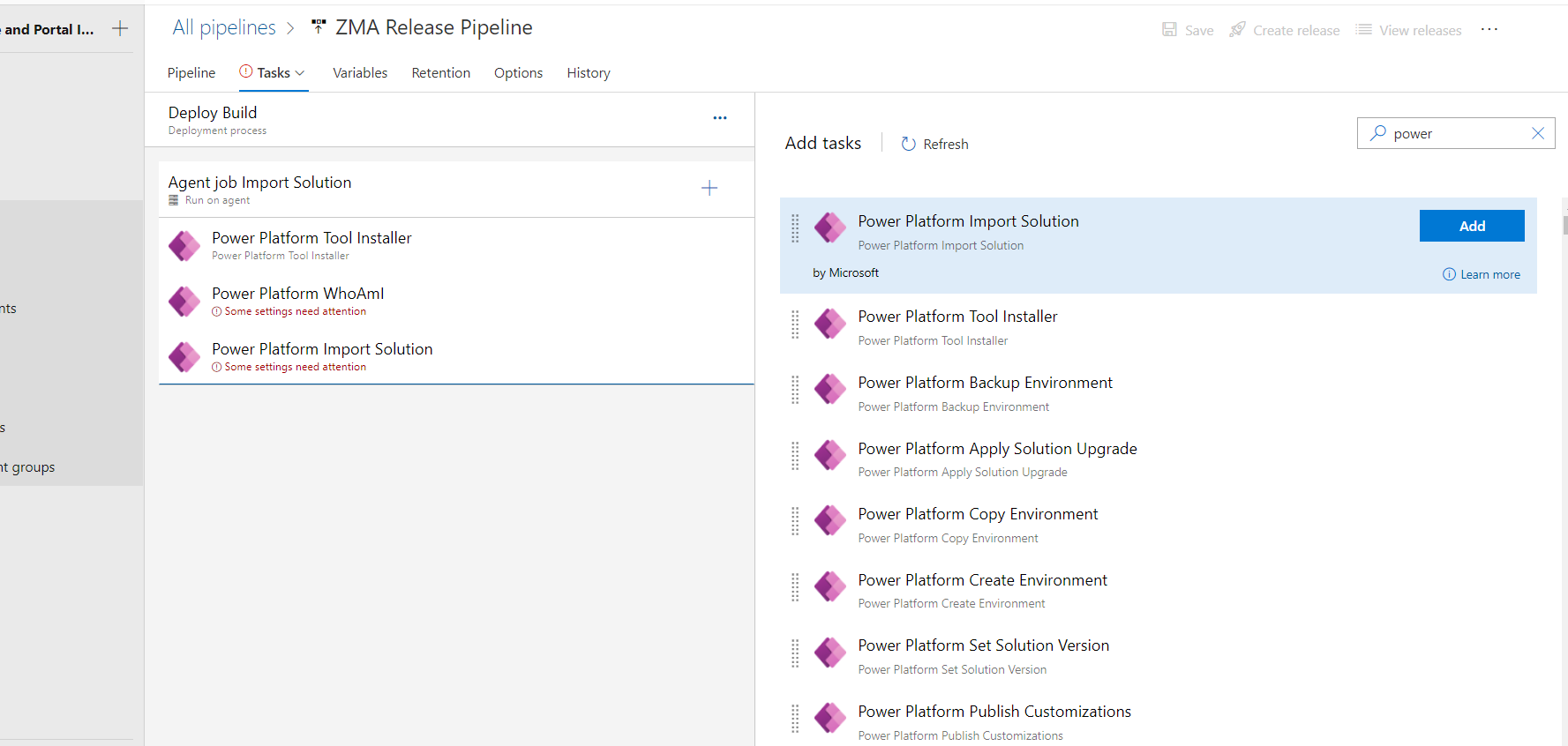

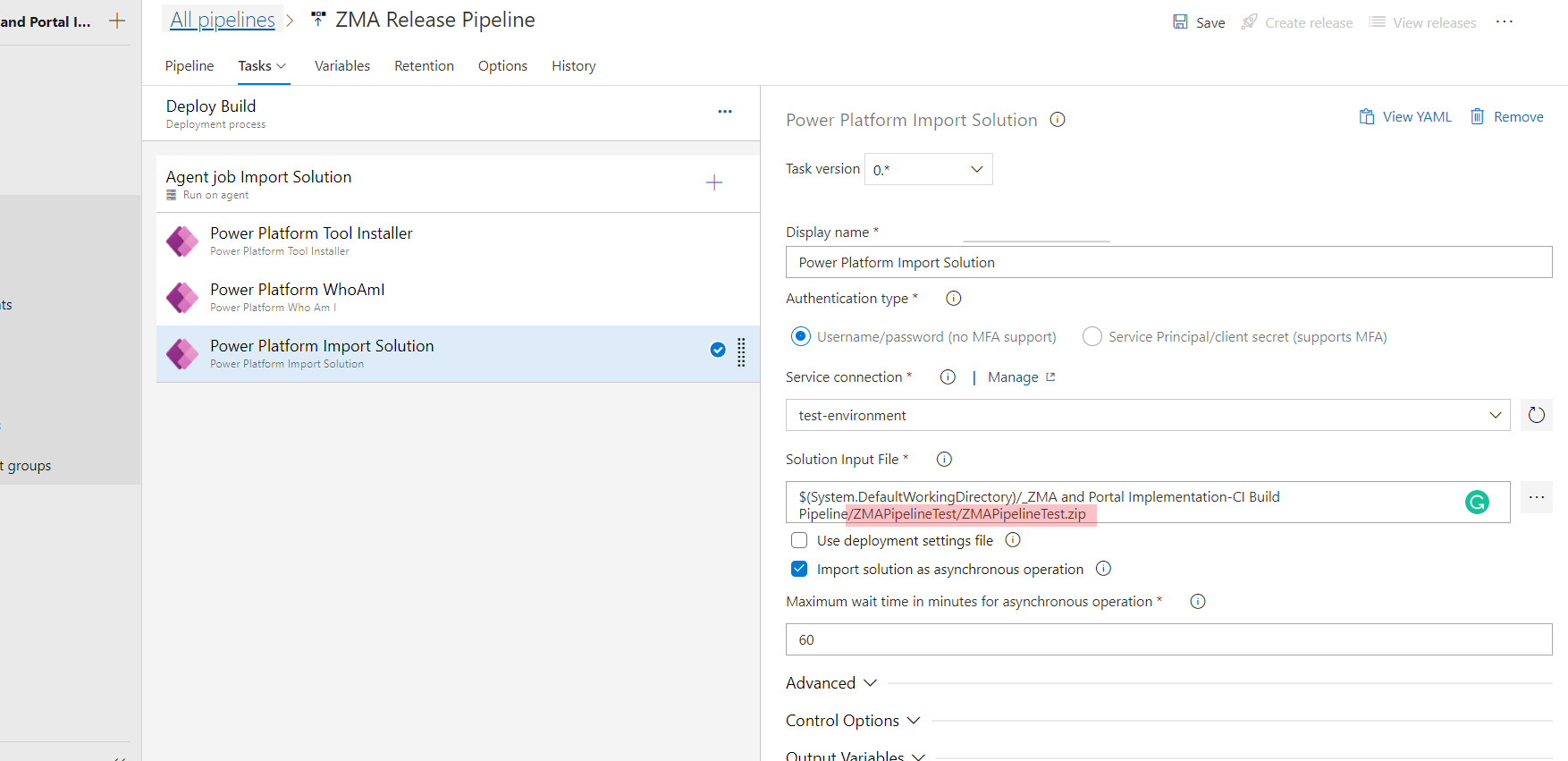
  6. In import solution task, for service connection I have created the new connection for test environment and select it here and for solution output file select the linked artifacts of build pipeline.
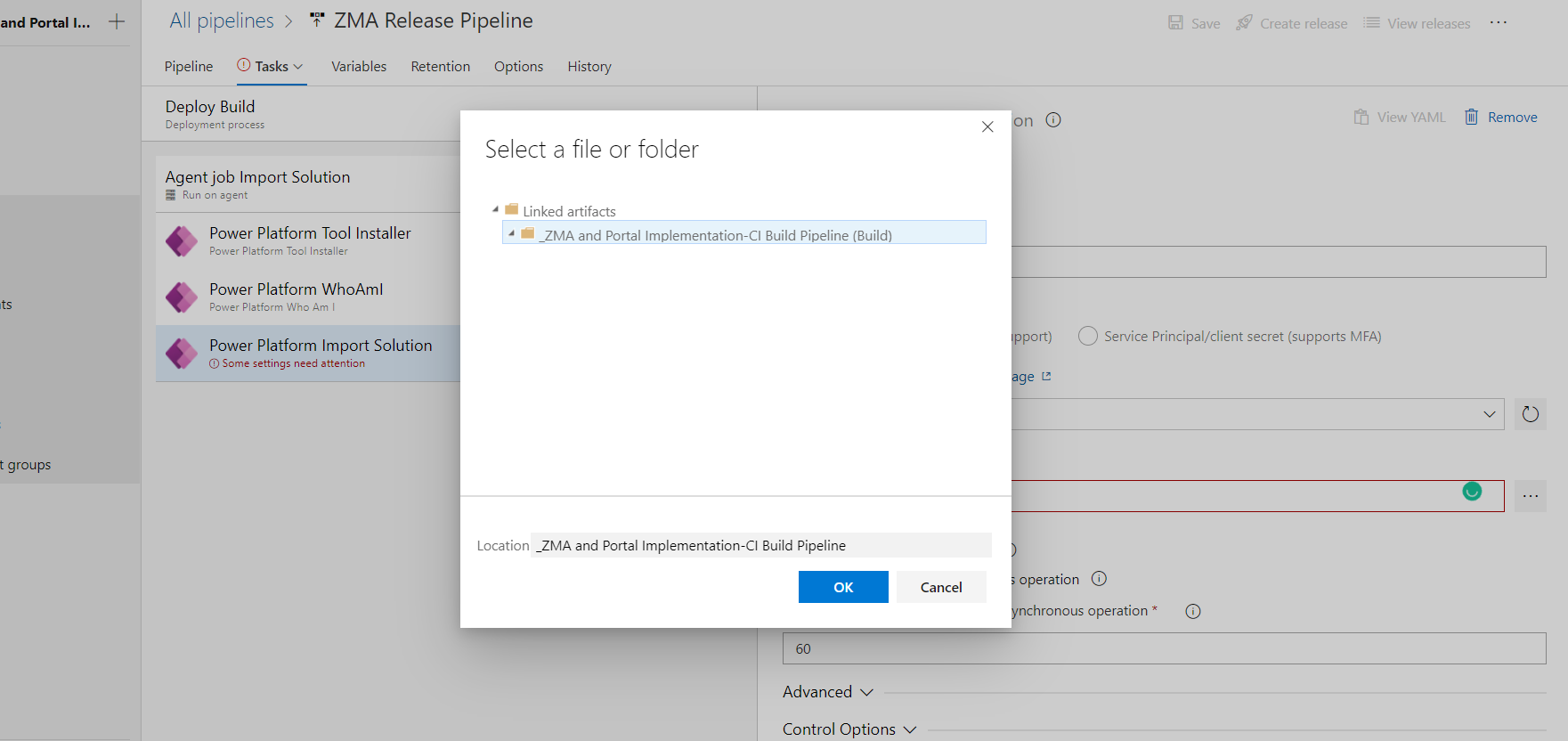


    and append the Artifact and Solution name mentioned in build pipeline.

  7. Now I have added an another stage in the same release pipeline because I want to deploy the exported solution from build pipeline into two different test environments.
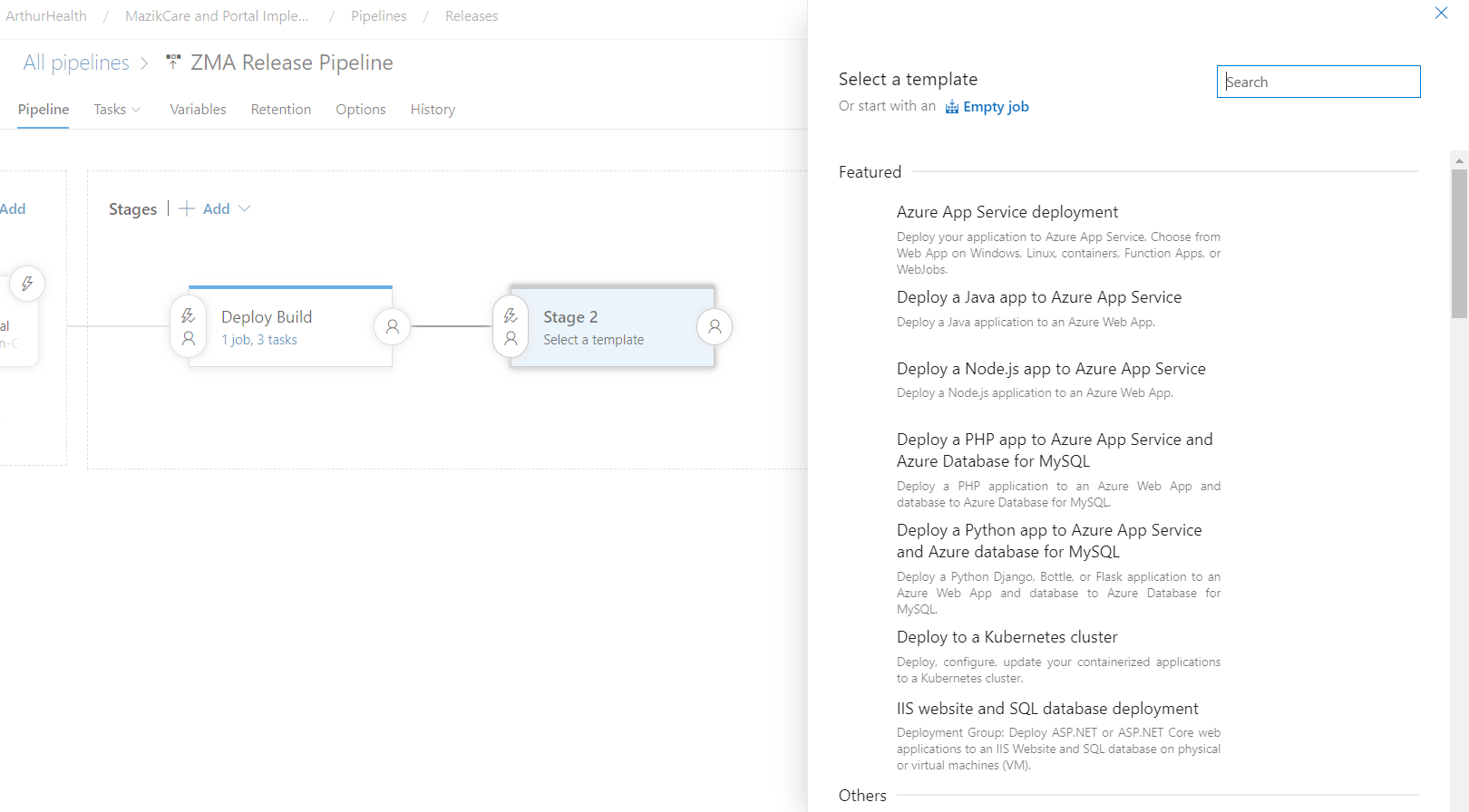


    After selecting the empty job I have added the same tasks with different service connection.

    Note: If you want to deploy the build only in one environment you can can skip the above point no 7.

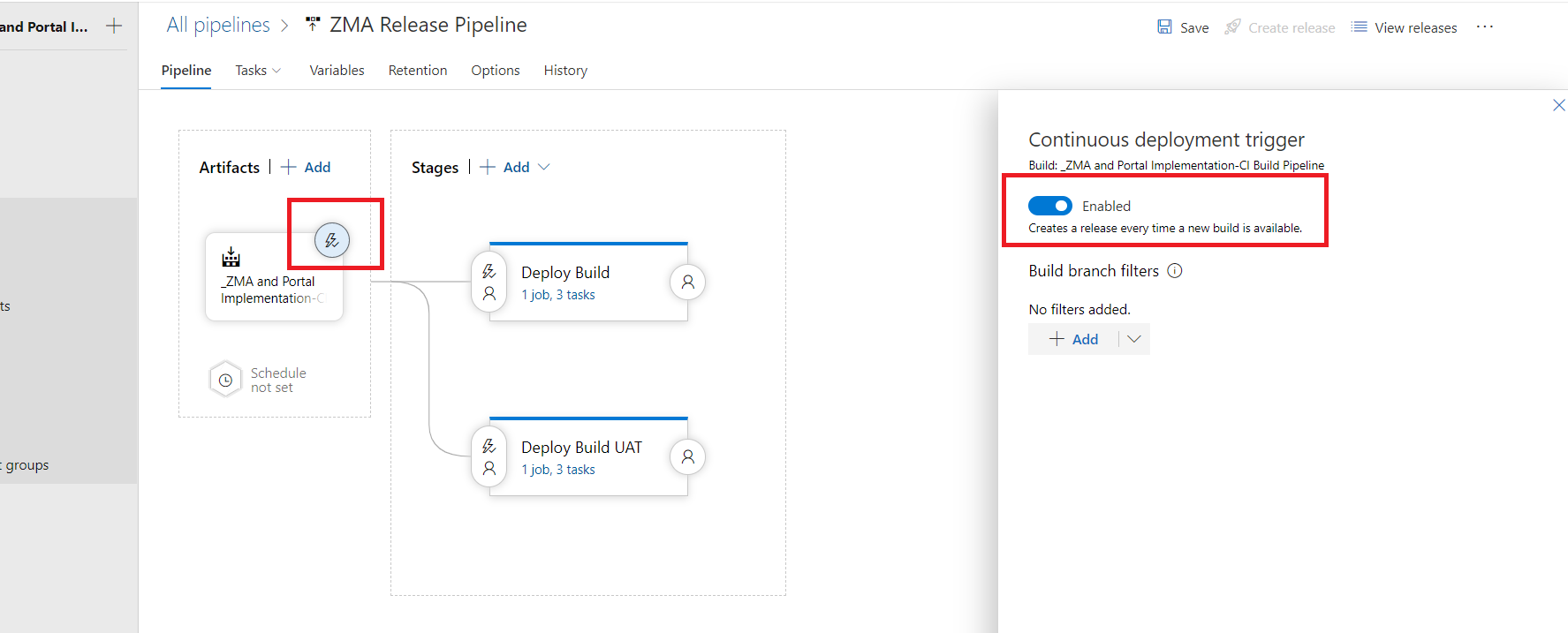
  8. Now in the pipeline tab, select the “continuous deployment trigger” icon and click Enabled. This will automatically trigger the Release pipeline after the build pipeline is run.

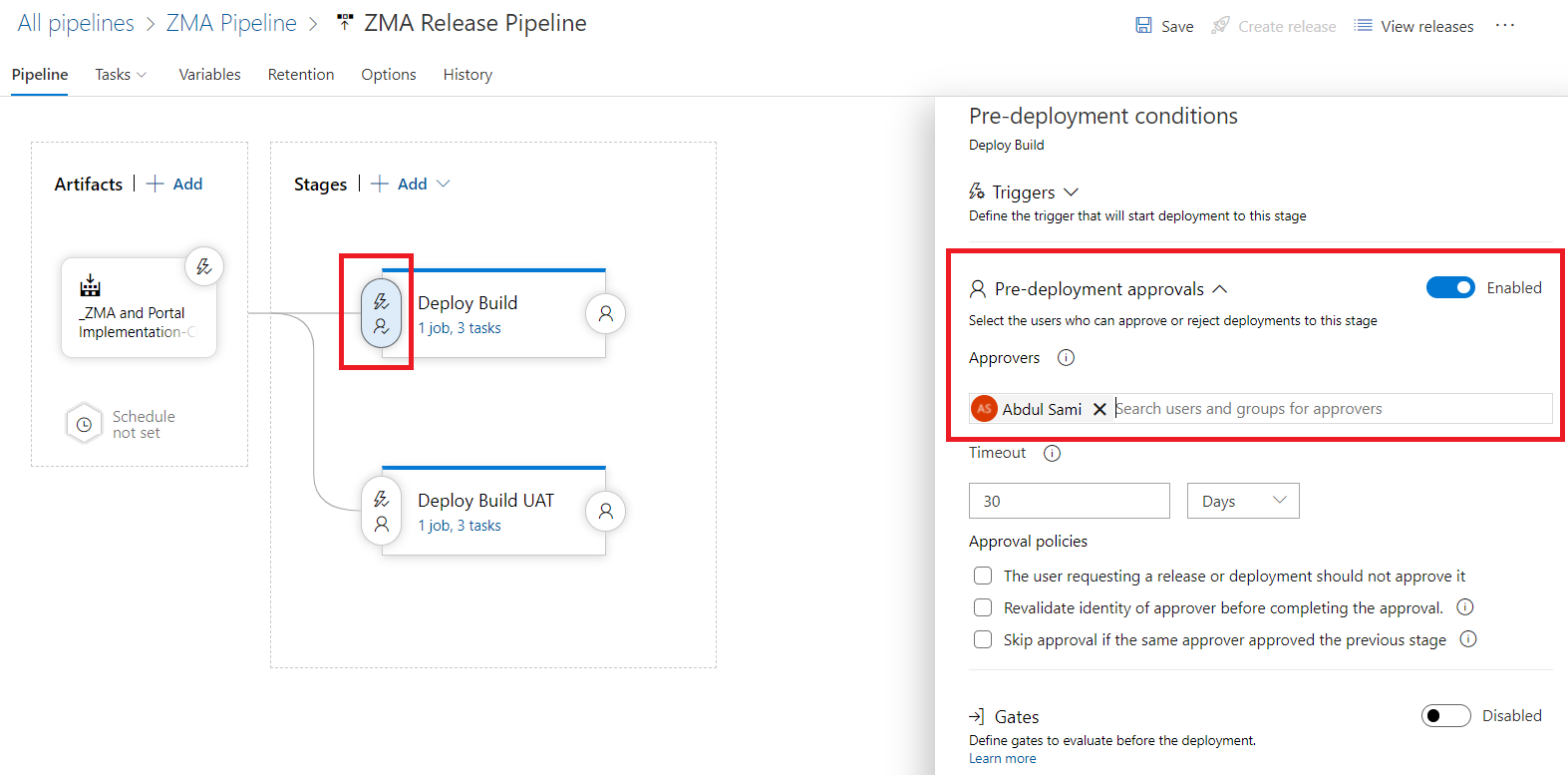
  9. Now I have added the “Pre-deployment approvals” for one environment (stage) because as we know this is the automated process but we can keep control of the deployment for any specific environment because sometimes approvals are required from the environment owners or higher management.
    I have added my own user in the Approves list. I will receive an email once the release pipeline is triggered and I can approve or reject the “Deploy Build” stage tasks.
Build & Release Pipeline Test

I have a solution in Dev environment and I want to deploy this solution in our two test environments as a managed, For one environment I have added a Pre-deployment Approval.

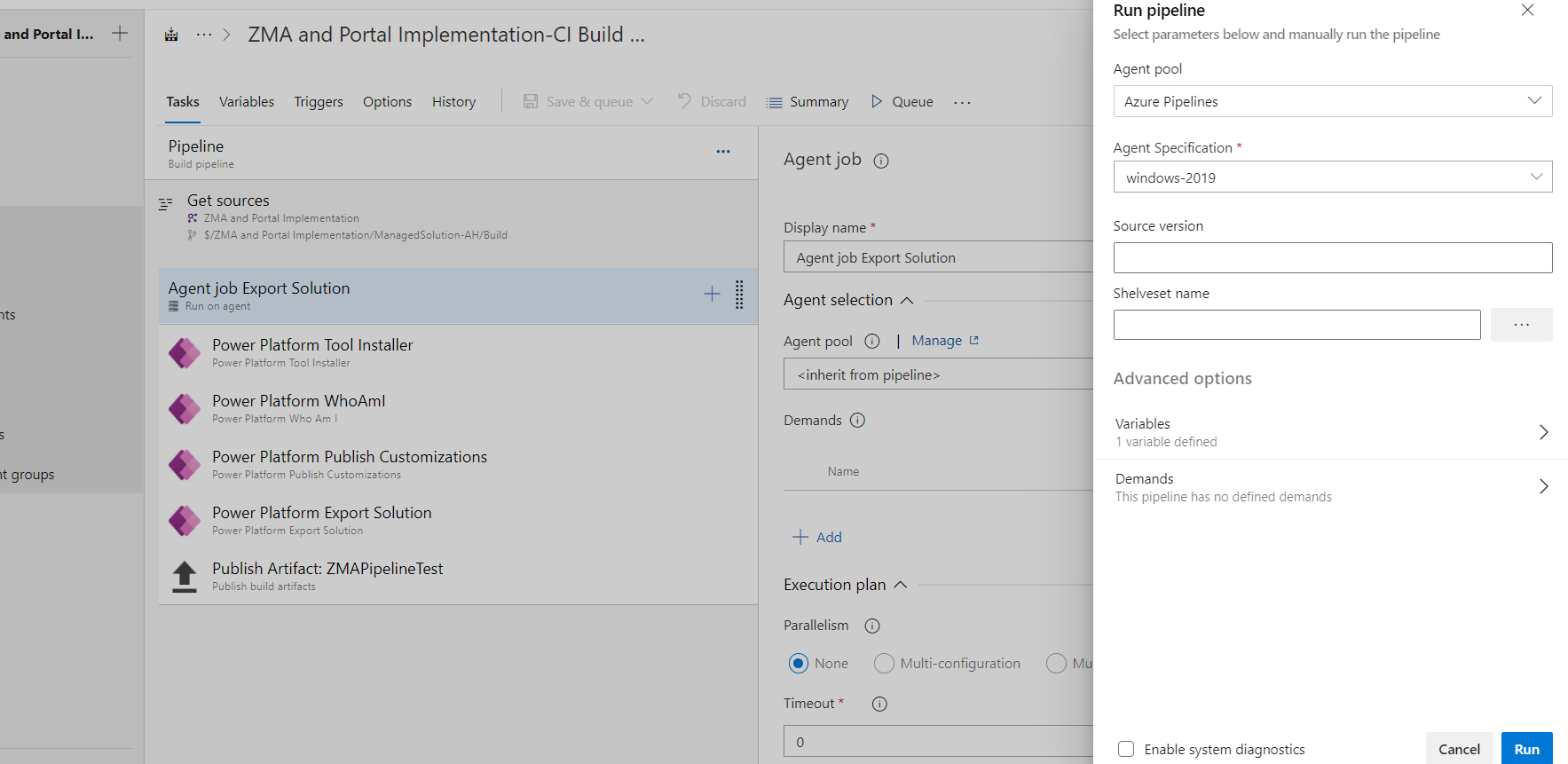
I have manually triggered the Azure Build Pipeline

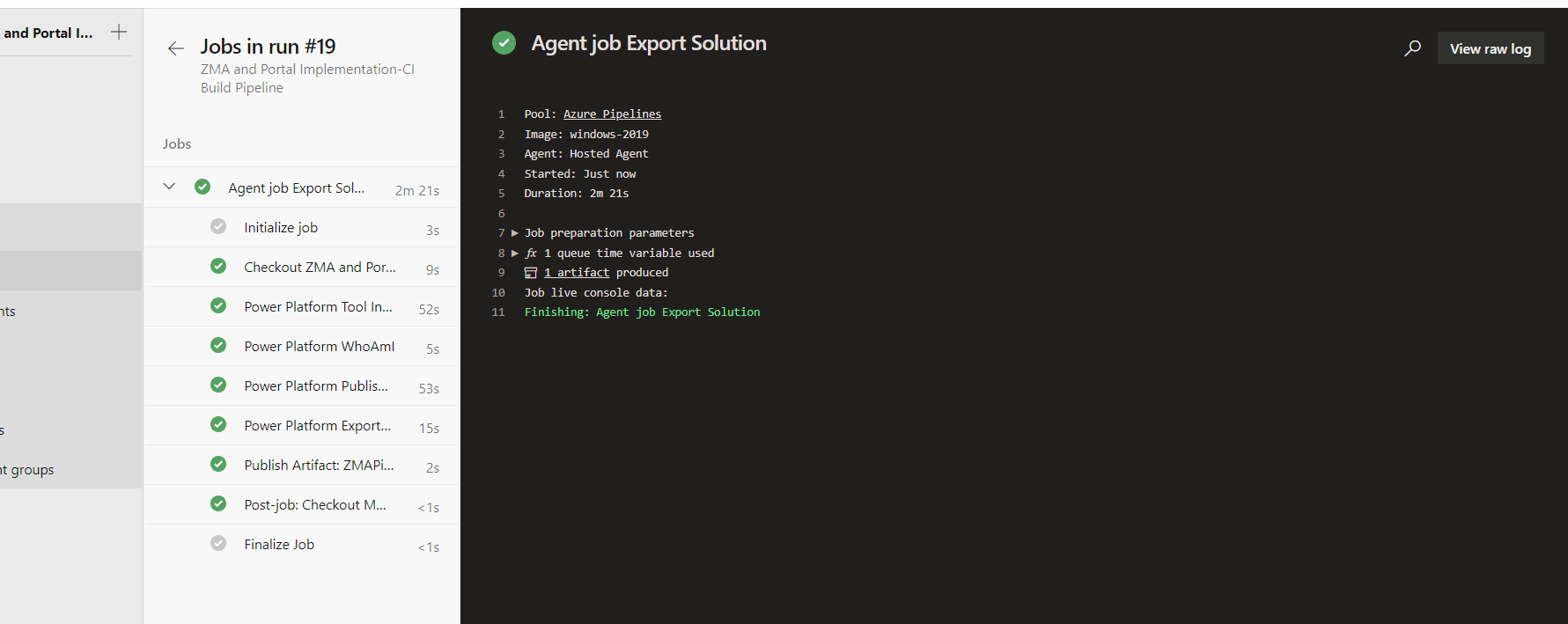
Build Pipeline successfully ran.

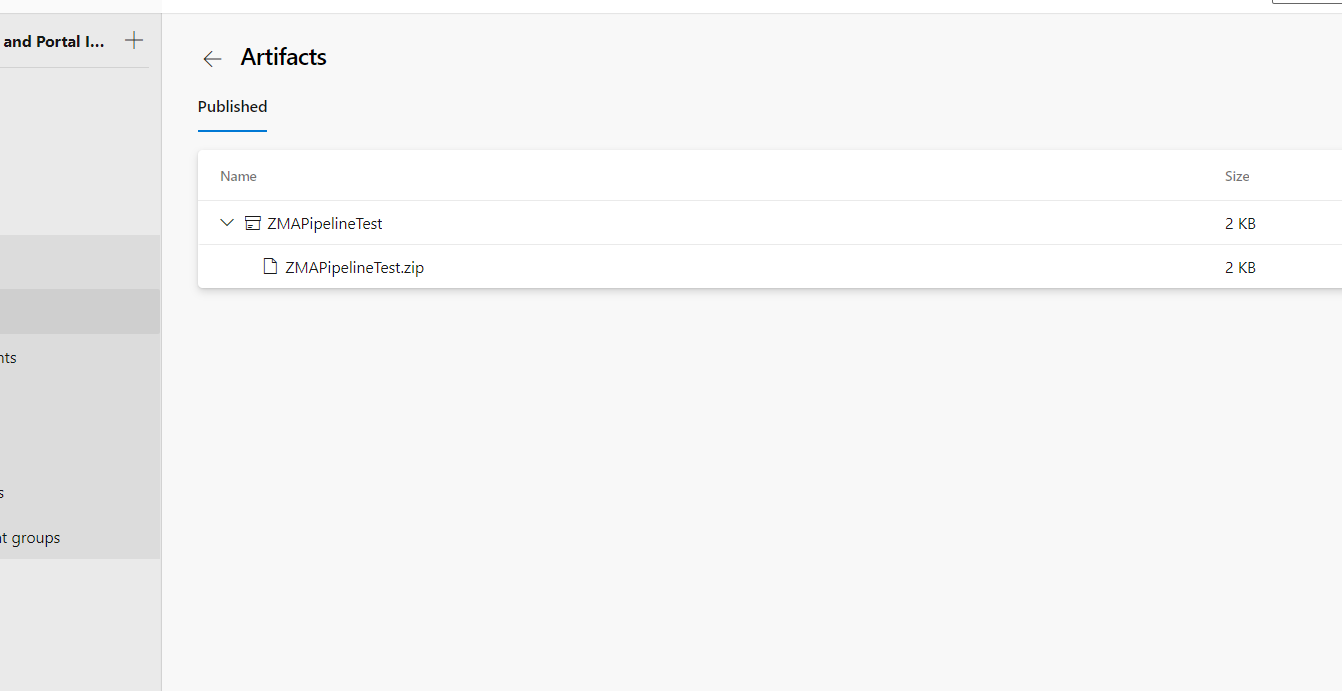
In Artifacts our Managed solution file is available.

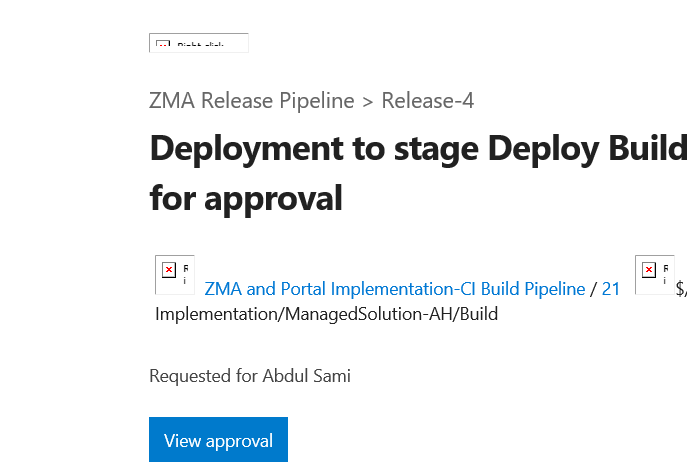
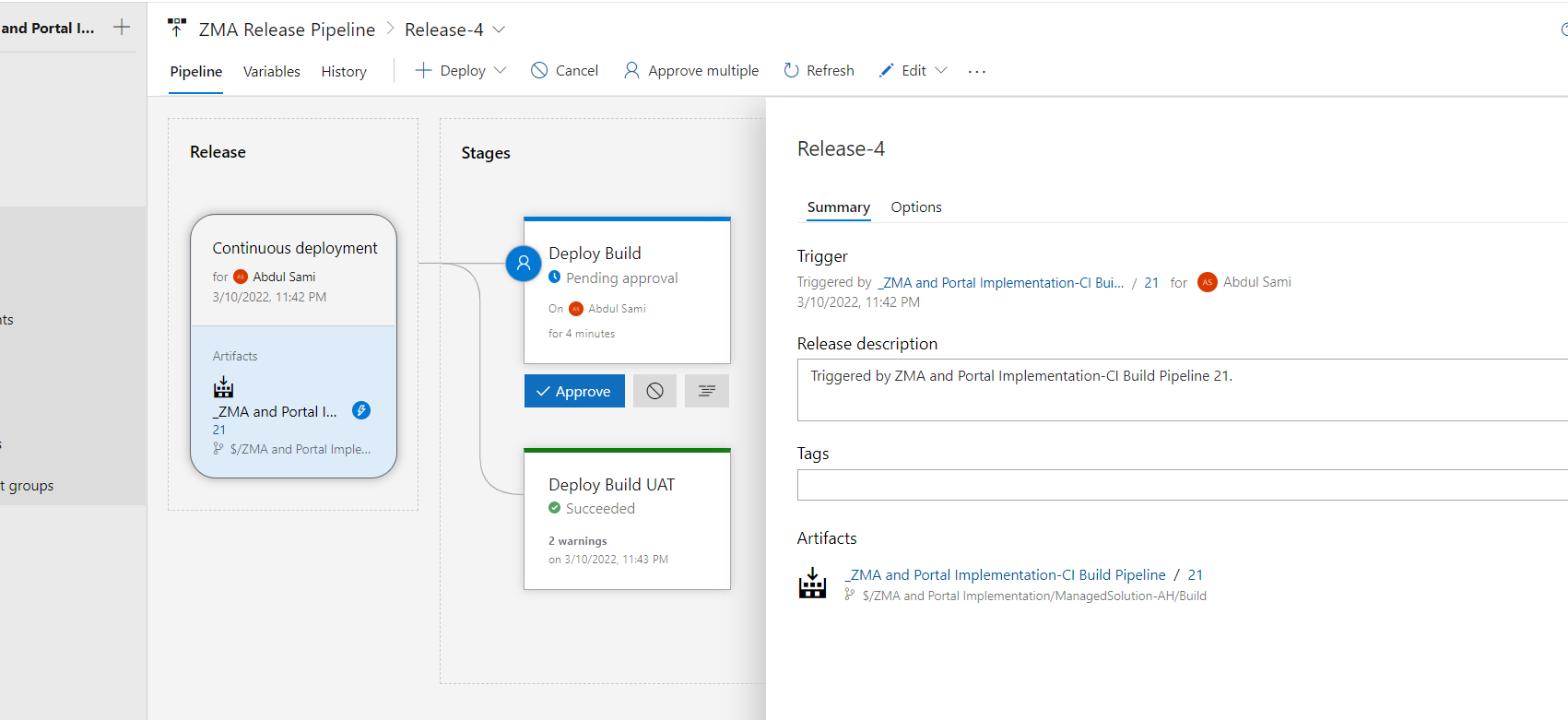
Now our Release Pipeline is automatically triggered and for one stage I have received an email to approve and for the second stage we didn’t set any pre-validation approval.

Once I approved the build it did get deployed in the destination environment.

I have shared the solution history of one of the test environment.
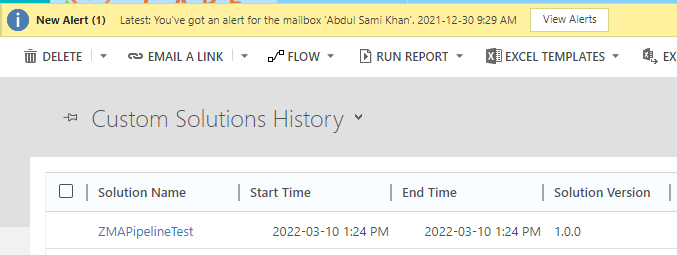
Now the “ZMAPipelineTest” managed solution is successfully deployed from one Dev environment to two test environments by using the CI/CD (Build & Release Pipeline).

Conclusion

There are several other options available in the Azure Pipelines which I have not used in this blog like setting Solution Version, push solution file in TFVC, send notification if run fails, few more pre and post deployment conditions and many more.
Hope this Article will help you guys to implement CI/CD for Dynamics 365 CE using Azure DevOps and Power Platform.
Send HTML Emails Using MS Flow From Dynamics 365 CE

Introduction

In this blog, I will create a MS Flow and Send the Order related Details to the Customer through the HTML formatted Email from Dynamics 365 CE.

Steps

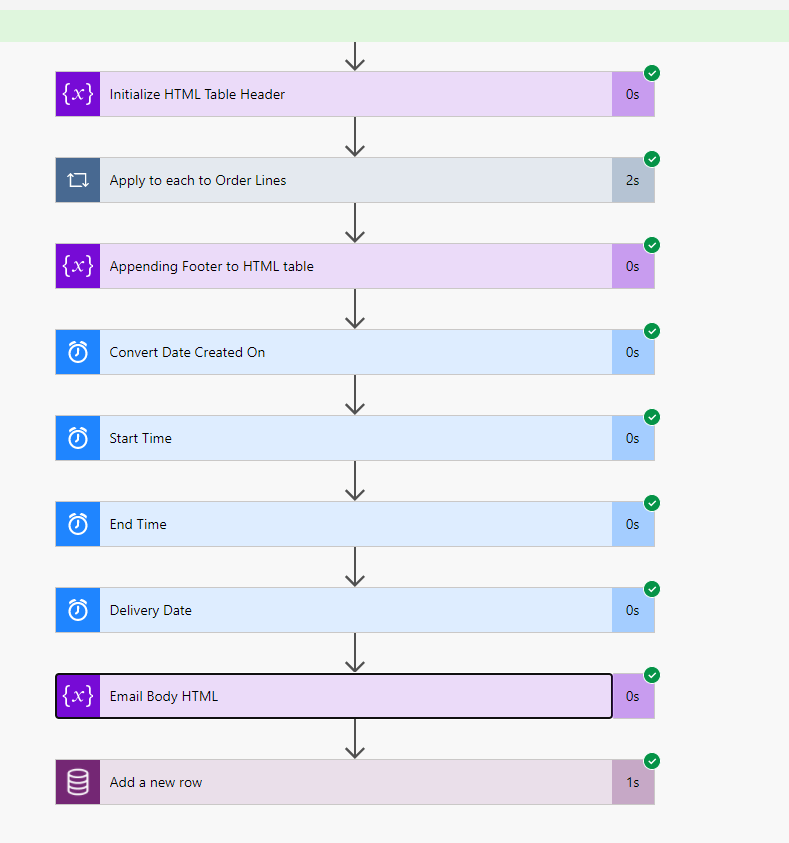
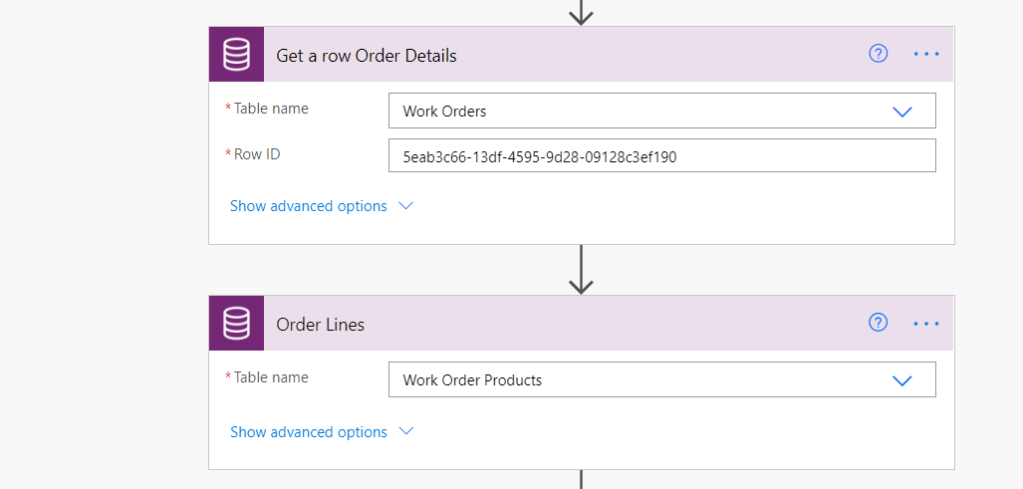
Here I’m retrieving the Order and Order Lines from Dynamics 365 CE.

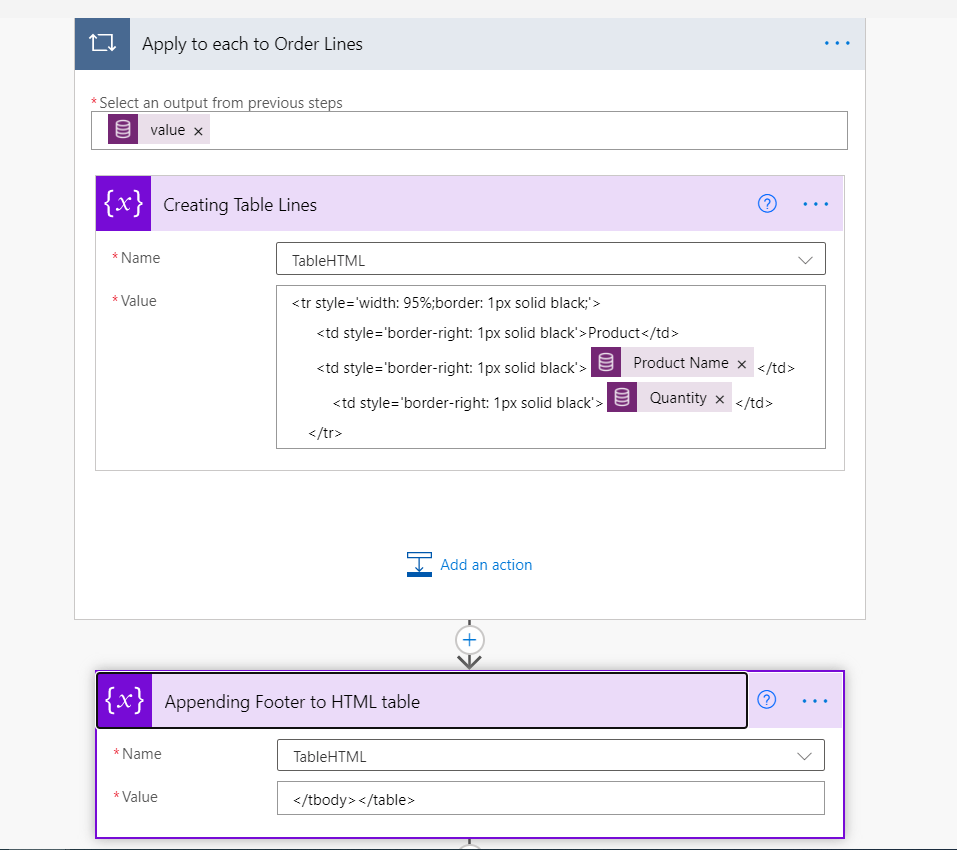
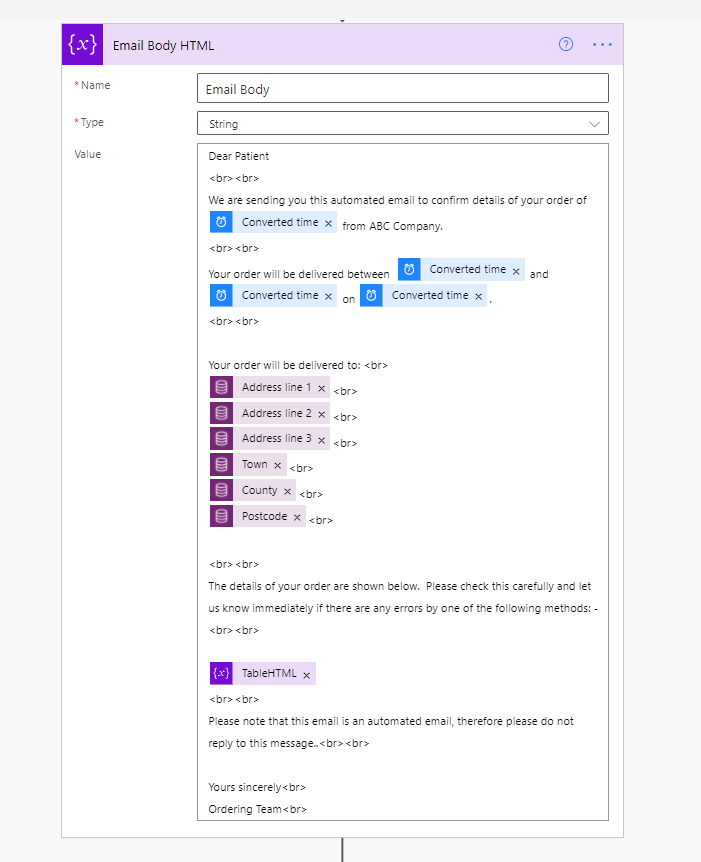
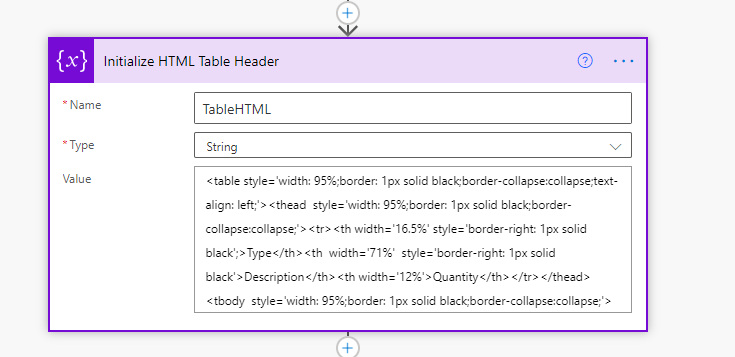
Initializing the string variable to create a HTML table ( with basic Inline CSS) for Order Lines to send in an Email.

Adding row dynamically in the table and appending table footer in the end.

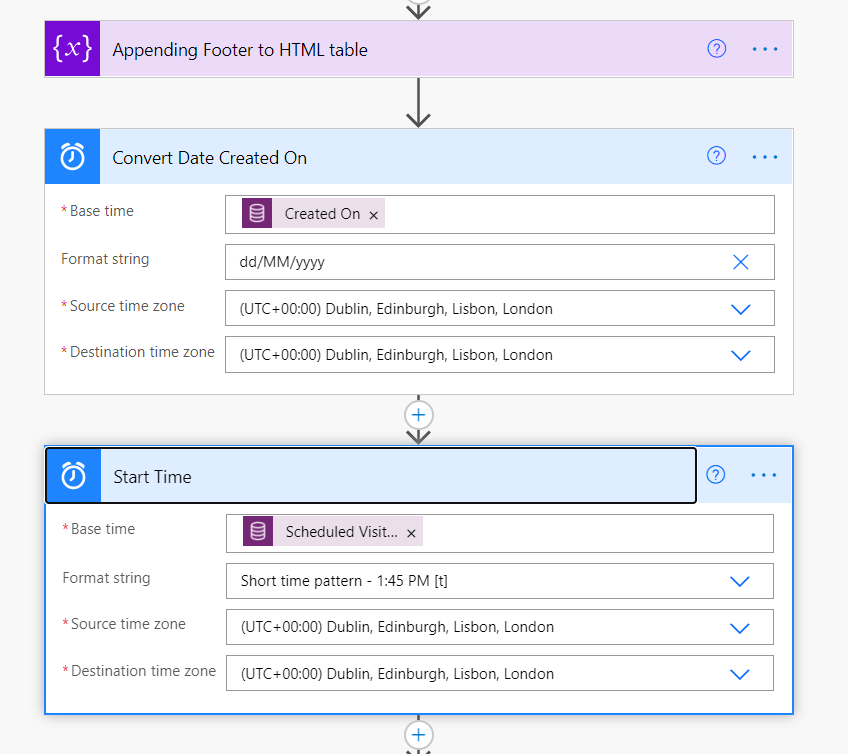
I have used the Convert Time Zone action to change the formatting of the retrieve Date fields from Dynamics 365 CE.

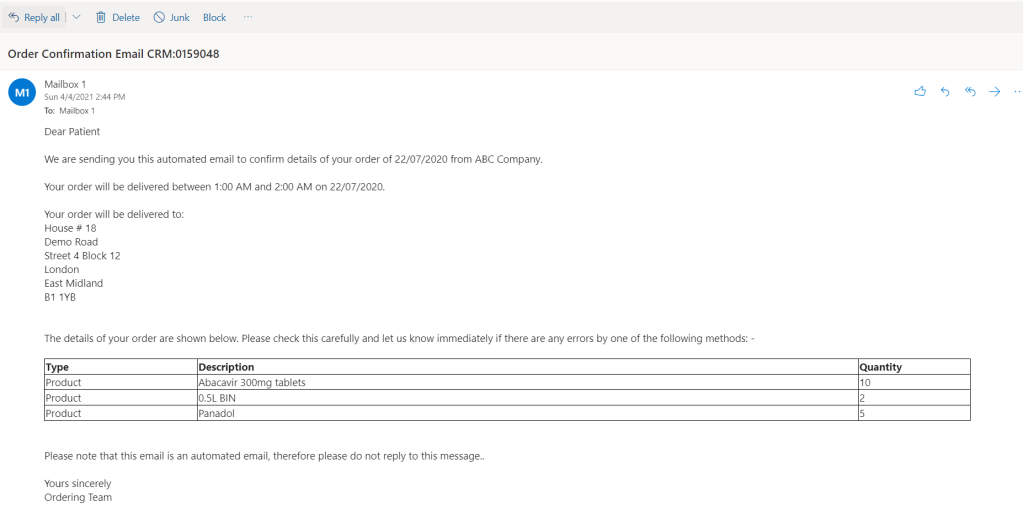
Here is the final HTML Email body which will be sent to the customer.

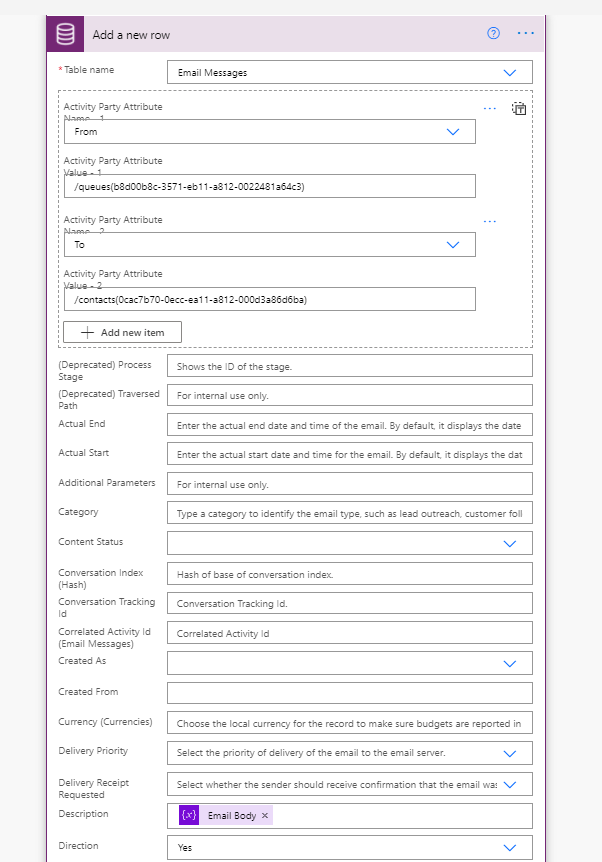
I’m creating an Email Message record and using the Dynamics 365 Email Feature otherwise I could have sent the Email directly from this MS Flow.

Here is the final view of MS Flow and it ran successfully.

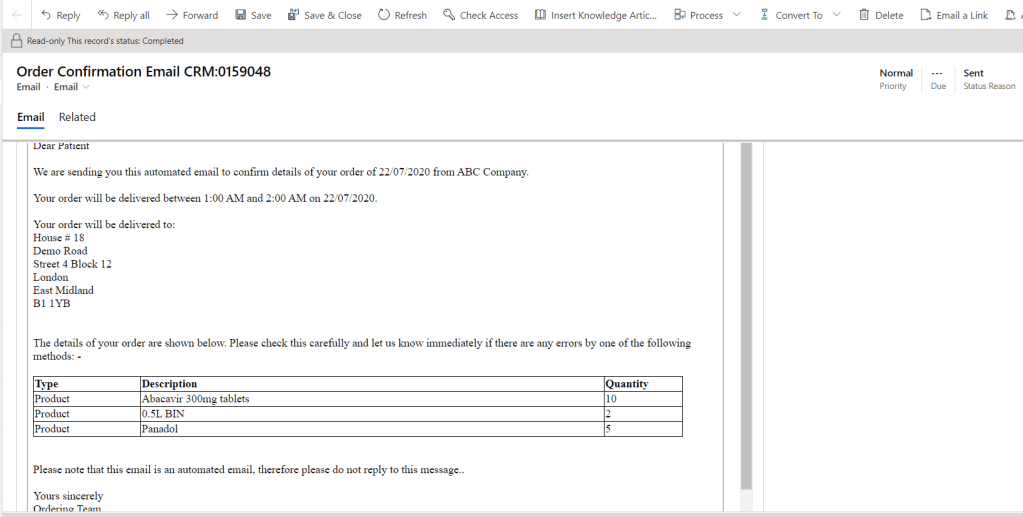
HTML Email Message with tabular format Order Lines created in Dynamics 365 CE and Email is sent to the Customer.

Here is how the Customer received the Email in Outlook.

Note
One more thing we can do is create an Email Template in Dynamics 365 and use that in MS Flow and replace the placeholders with HTML chunks. In that way, the end-users can easily update the Email Template/Format whenever they want directly in Dynamics 365.

Set Lookup Field Disable/Enable in Dynamics 365 CE Portal

Here is the snippet which helps to set the lookup field as Disable(Read-only) in the dynamics portal.

function disableLookupField(lookupId) {
    $('#' + lookupId).parent().find('.input-group-btn').hide();
    $('#' + lookupId).parent().parent().find('.input-group').css('width', '100%');
    $('#' + lookupId + '_name').prop('disabled', true);

}

Here is the snippet which helps to Enable the lookup field in the dynamics portal.

function enableLookupField(lookupId) {
    $('#' + lookupId).parent().find('.input-group-btn').show();
    $('#' + lookupId + '_name').prop('disabled', false);

}

Set a field Mandatory or Non-Mandatory in Dynamics 365 CE Portal

If you want to make field mandatory on Dynamics 365 CE Portal Form using javascript/JQuery

var MakeRequired = function (fieldName) {
    try {
        if ($("#" + fieldName) !== undefined) {
            $("#" + fieldName).prop('required', true);
            $("#" + fieldName).closest(".control").prev().addClass("required");

            // Create new validator
            var Requiredvalidator = document.createElement('span');
            Requiredvalidator.style.display = "none";
            Requiredvalidator.id = fieldName + "Validator";
            Requiredvalidator.controltovalidate = fieldName;
            Requiredvalidator.errormessage = "" + $("#" + fieldName + "_label").html() + " is a required field.";
            Requiredvalidator.initialvalue = "";
            Requiredvalidator.evaluationfunction = function () {
                var value = $("#" + fieldName).val();
                if (value == null || value == "") {
                    return false;
                } else {
                    return true;
                }
            };

            // Add the new validator to the page validators array:
            Page_Validators.push(Requiredvalidator);
        }
    }
    catch (error) {
        errorHandler(error);
    }
}

If you want to make field non-mandatory on Dynamics 365 CE Portal Form using javascript/JQuery

var MakeNotRequired = function (fieldName) {
    try {
        if ($("#" + fieldName) !== undefined) {
            $("#" + fieldName).closest(".control").prev().removeClass("required");
            $("#" + fieldName).prop('required', false);

            for (i = 0; i < Page_Validators.length; i++) {
                if (Page_Validators[i].id == fieldName + "Validator") {
                    Page_Validators.splice(i);
                }
            }
        }
    }
    catch (error) {
        errorHandler(error);
    }
}

Parse HL7 EDI Message using C# and NHAPI

NHAPI provides core components for parsing/encoding HL7 messages.In my case I will use NHapi.Model.V231 for parsing.I will be using below message to parse int his blog.

MSH|^~\&|ADL Messaging|ADL|Receiving App|Receiving facility|201907160346||ORU^R01|20190716033149_CM796136|T|2.3.1|||AL|||||
PID|||||SURNAME^FIRSTNAME^^^||189912310000|M|||^^^^|||||||||||||||||||
PV1|||Hsp^Hospital Ltd|||||||||||||||||||||||||||||||||||||||||
ORC|RE|PatientId|0019T637146||CM||||201907160346|||||||||||
OBR|1|CM796136|0019T637146|FBCX^FULL BLOOD COUNT^WinPath||201907151657|201907151030|||||||||^||||||||TDL|F||||||||||||||||||||
NTE|1||Morning hours 6-10am : 166-507 nmol/L..br\Afternoon hours 4-8pm : 73.8-291 nmol/L.
NTE|1||Morning1 hours 6-10am : 166-507 nmol/L..br\Afternoon hours 4-8pm : 73.8-291 nmol/L.
OBX|1|NM|HBGL^HAEMOGLOBIN (g/L)^WinPath^HAEMATOLOGY^1^0||122|g/L|130 - 170|L|||F|||||
NTE|1||Morning hours 6-10am : 166-507 nmol/L..br\Afternoon hours 4-8pm : 73.8-291 nmol/L.

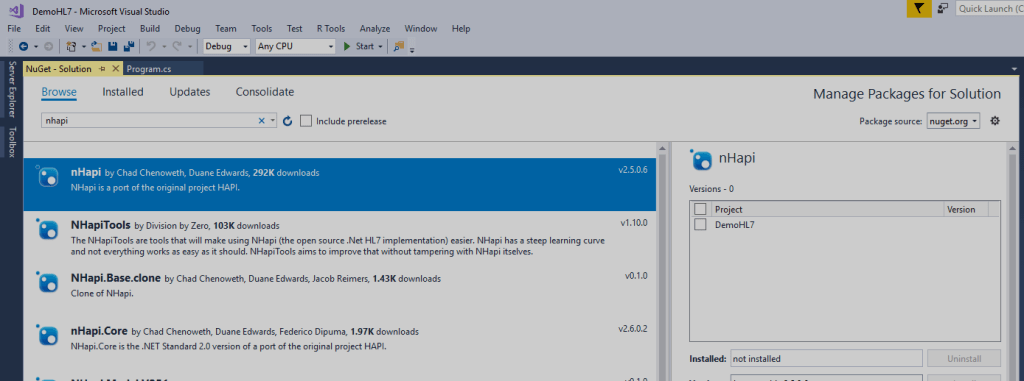
Install the NHAPI in to your project.

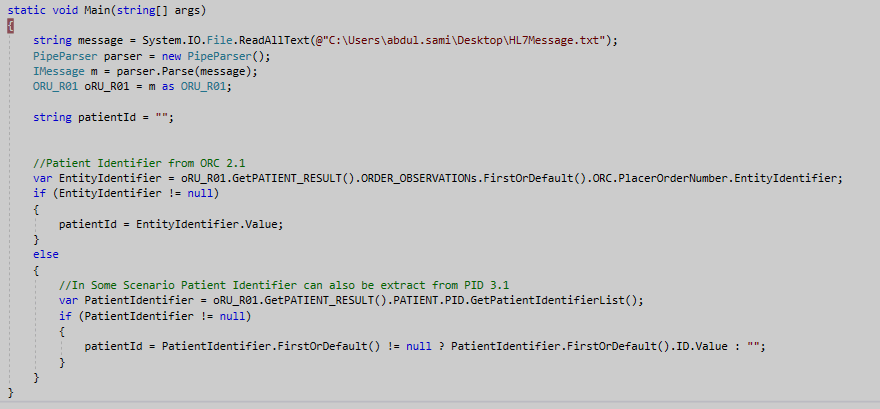
The first thing I have done is I have extract the Identifier from this message, In my scenario I will be extracting it from ORC and PID segment depending up on the vendors I will be receiving the message file.

Birthdate of a patient can be extracted from PID segment like this

Now moving towards the main part we need to extract observation details from this message for this I have crated the two model classes (Patient Order and Patient Order Result) in which I will be storing the Observation details.

Here is the complete code snippet of my project.

using NHapi.Base.Parser;
using NHapi.Model.V231.Message;
using System;
using System.Collections.Generic;
using System.Linq;
using NHapi.Base.Model;
using NHapi.Model.V231.Segment;

namespace DemoHL7
{
    class Program
    {
        static void Main(string[] args)
        {
            string message = System.IO.File.ReadAllText(@"C:\Users\abdul.sami\Desktop\HL7Message.txt");
            PipeParser parser = new PipeParser();
            IMessage m = parser.Parse(message);
            ORU_R01 oRU_R01 = m as ORU_R01;

            string patientId = "";

            //Patient Identifier from ORC 2.1
            var EntityIdentifier = oRU_R01.GetPATIENT_RESULT().ORDER_OBSERVATIONs.FirstOrDefault().ORC.PlacerOrderNumber.EntityIdentifier;
            if (EntityIdentifier != null)
            {
                patientId = EntityIdentifier.Value;
            }
            else
            {
                //In Some Scenario Patient Identifier can also be extract from PID 3.1
                var PatientIdentifier = oRU_R01.GetPATIENT_RESULT().PATIENT.PID.GetPatientIdentifierList();
                if (PatientIdentifier != null)
                {
                    patientId = PatientIdentifier.FirstOrDefault() != null ? PatientIdentifier.FirstOrDefault().ID.Value : "";
                }
            }

            //BirthDate of a Patient can be extract from PID 7.1
            if (oRU_R01.GetPATIENT_RESULT().PATIENT.PID.DateTimeOfBirth.TimeOfAnEvent != null)
            {
                var timeOfAnEvent = oRU_R01.GetPATIENT_RESULT().PATIENT.PID.DateTimeOfBirth.TimeOfAnEvent;
                if (timeOfAnEvent.Year > 0 && timeOfAnEvent.Month > 0 && timeOfAnEvent.Day > 0)
                {

                    DateTime birthDate = new DateTime(timeOfAnEvent.Year, timeOfAnEvent.Month, timeOfAnEvent.Day, timeOfAnEvent.Hour, timeOfAnEvent.Minute, timeOfAnEvent.Second);

                }
            }
            List PatientOrderList = new List();
            foreach (var observation in oRU_R01.PATIENT_RESULTs.FirstOrDefault().ORDER_OBSERVATIONs)
            {
                List PatientOrderResultList = new List();
                PatientOrder PatientOrder = new PatientOrder();

                var OBR_UniversalServiceID = observation.OBR.UniversalServiceID;
                PatientOrder.LabTest = OBR_UniversalServiceID.Identifier != null ? OBR_UniversalServiceID.Identifier.Value : ""; //OBR 4.1
                PatientOrder.LabTestDescription = OBR_UniversalServiceID.Text != null ? OBR_UniversalServiceID.Text.Value : ""; //OBR 4.2
                PatientOrder.ResultStatus = observation.OBR.ResultStatus.Value;  //OBR 25.1
                if (observation.OBR.SpecimenReceivedDateTime.TimeOfAnEvent != null)
                {
                    var timeOfAnEvent = observation.OBR.SpecimenReceivedDateTime.TimeOfAnEvent; //OBR 14.1
                    if (timeOfAnEvent.Year > 0)
                    {
                        DateTime dateTime = new DateTime(timeOfAnEvent.Year, timeOfAnEvent.Month, timeOfAnEvent.Day, timeOfAnEvent.Hour, timeOfAnEvent.Minute, timeOfAnEvent.Second);
                        PatientOrder.SpecimenDateTime = dateTime;
                    }
                }
                if (observation.NTEs.Count() > 0)
                {
                    PatientOrder.Comments = GenerateNTEComments(observation.NTEs.ToList());  //Comments of OBR Segment currently I'm storing these(multiple) comments in single line(come seprated)
                }
                foreach (var observationDetail in observation.OBSERVATIONs)
                {
                    PatientOrderResult PatientOrderResult = new PatientOrderResult();
                    Varies result = observationDetail.OBX.GetObservationValue(0); //Observation Result
                    if (observationDetail.NTEs.Count() > 0)
                    {
                        PatientOrderResult.Comments = GenerateNTEComments(observationDetail.NTEs.ToList()); //Comments of OBX Segment currently I'm storing these(multiple) comments in single line(come seprated)
                    }
                    PatientOrderResult.Code = observationDetail.OBX.ObservationIdentifier.Identifier.Value; //Result Code OBX 3.1
                    PatientOrderResult.Description = observationDetail.OBX.ObservationIdentifier.Text.Value; //Result Code Description  OBX 3.2
                    PatientOrderResult.Result = result.Data.ToString();    // Result of a test OBX 5.1                    
                    PatientOrderResult.Unit = observationDetail.OBX.Units.Identifier != null ? observationDetail.OBX.Units.Identifier.Value : ""; //Unit OBX 6.1
                    PatientOrderResult.Ranges = observationDetail.OBX.ReferencesRange.Value; // OBX 7.1
                    PatientOrderResult.AbnormalFlag = observationDetail.OBX.GetAbnormalFlags(0).Value; // OBX 8.1
                    PatientOrderResult.ObservationResultStatus = observationDetail.OBX.ObservationResultStatus.Value;  //Observation Result Status OBX 11.1

                    PatientOrderResultList.Add(PatientOrderResult);
                }
                PatientOrder.PatientOrderResultList = PatientOrderResultList;
                PatientOrderList.Add(PatientOrder);

            }


        }
        public static string GenerateNTEComments(List nte)
        {
            string nteComment = "";
            try
            {
                for (int i = 0; i <= nte.Count() - 1; i++)
                {
                    if (nte[i].GetComment() != null && nte[i].GetComment().FirstOrDefault() != null && nte[i].GetComment().FirstOrDefault().Value != null)
                    {
                        if (nteComment != "")
                        {
                            nteComment += ", ";

                        }
                        nteComment += nte[i].GetComment().FirstOrDefault().Value;
                    }
                }
            }
            catch (Exception ex)
            {

            }
            return nteComment;
        }
    }

    public class PatientOrder
    {

        public string LabTest { get; set; }
        public string LabTestDescription { get; set; }
        public string ResultStatus { get; set; }
        public string Comments { get; set; }
        public DateTime? SpecimenDateTime { get; set; }
        public List PatientOrderResultList { get; set; }
    }
    public class PatientOrderResult
    {

        public string Code { get; set; }
        public string Description { get; set; }
        public string Result { get; set; }
        public string Unit { get; set; }
        public string Comments { get; set; }
        public string Ranges { get; set; }
        public string AbnormalFlag { get; set; }
        public string ObservationResultStatus { get; set; }
    }
}

Summary

In this blog I have tried to explain the parsing of HL7 message and highlighted the important fields in this message. 

Send Mail using Windows Service C#

Step 1

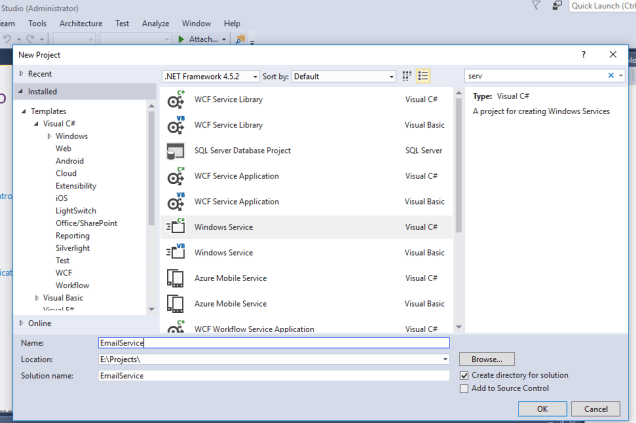
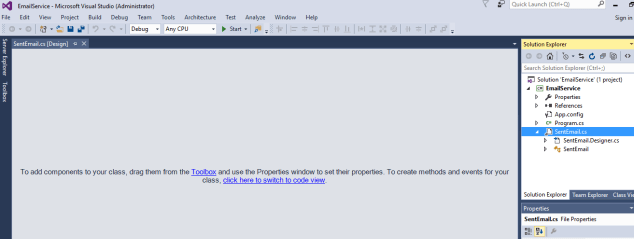
Open Visual Studio and create a new project. Under Windows Desktop select Windows Service and provide a proper name and click on the OK button.

Step 2

Rename the service1 class to a proper name. In this case I am using “SentEmail”. Click on “Click here to switch to code view”.

Here is the code snippet of my Sent Email Service and it will triggered after every 10 minutes.

In the timer OnStart() function first write a message to the log that the service has been started and when the service stops write to the log that the service has stopped.

using System;
using System.IO;
using System.Net.Mail;
using System.ServiceProcess;

namespace EmailService
{
    public partial class SentEmail : ServiceBase
    {
        System.Timers.Timer createOrderTimer;
        public SentEmail()
        {
            InitializeComponent();
        }

        protected override void OnStart(string[] args)
        {
            WriteToFile("Email Service Start");
            createOrderTimer = new System.Timers.Timer();
            createOrderTimer.Elapsed += new System.Timers.ElapsedEventHandler(ExecuteEmail);
            createOrderTimer.Interval = 600000; // 10 min 
            createOrderTimer.Enabled = true;
            createOrderTimer.AutoReset = true;
            createOrderTimer.Start();
        }

        protected override void OnStop()
        {
            WriteToFile("Email Service Stop");
        }

        public static void ExecuteEmail(object sender, System.Timers.ElapsedEventArgs args)
        {
            try
            {
                MailMessage mail = new MailMessage();
                mail.To.Add("emailto@hotmail.com");
                mail.From = new MailAddress("emailfrom@gmail.com");
                mail.Subject = "Subject";
                mail.Body = "Body";
                mail.IsBodyHtml = true;
                SmtpClient smtp = new SmtpClient("smtp.gmail.com", 587);
                smtp.UseDefaultCredentials = false;
                smtp.EnableSsl = true;
                smtp.Credentials = new System.Net.NetworkCredential("emailfrom@gmail.com", "password");
                smtp.Send(mail);
            }

            catch (Exception ex)
            {
                WriteToFile("Service Error in Execute Email :  " + ex.Message);
            }
        }


        public static void WriteToFile(string text)
        {
            string path = "D:\\EmailServiceLog.txt";


            using (StreamWriter writer = new StreamWriter(path, true))
            {
                writer.WriteLine(string.Format(text + " " + DateTime.Now.ToString("dd/MM/yyyy hh:mm:ss tt")));
                writer.Close();
            }
        }
    }
}

Step 3

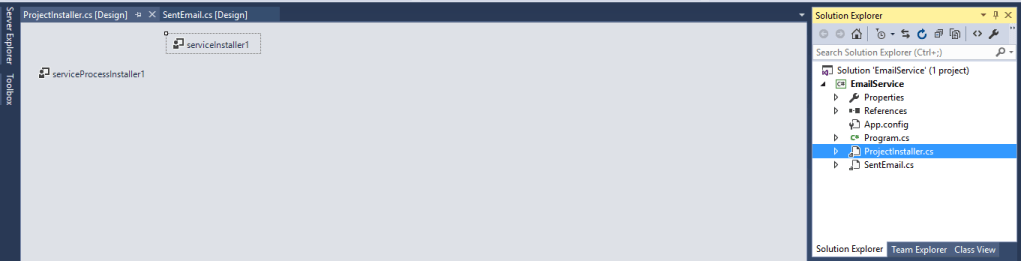
Add an installer by right click your class designer area.

Step 4

Now your Windows Service is ready. Compile this and use the following procedure to install and use this Windows Service.

Install Windows Service.

  1. Go to “Start” >> “All Programs” >> “Microsoft Visual Studio 2015” >> “Visual Studio Tools” . Click “Developer Command Prompt for VS2015”.

    Type the following command:

    cd <physical location of your EmailService.exe file>

    In my case it is:

    cd E:\Projects\EmailService\EmailService\bin\Debug>
  2. To Install type the following command:

    InstallUtil.exe “EmailService.exe”

    And press Enter.

Step 5

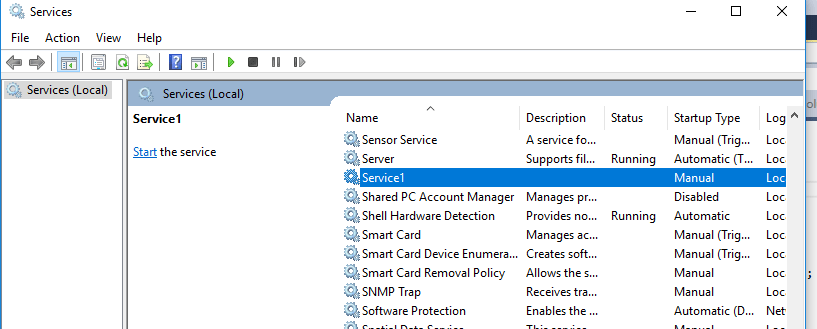
Now go to Services and find the service of your project name and start that service.In my case it Service1.

Uninstall Window Service

You can also uninstall this service by using the following command

InstallUtil.exe /u EmailService.exe

Debug Window Service

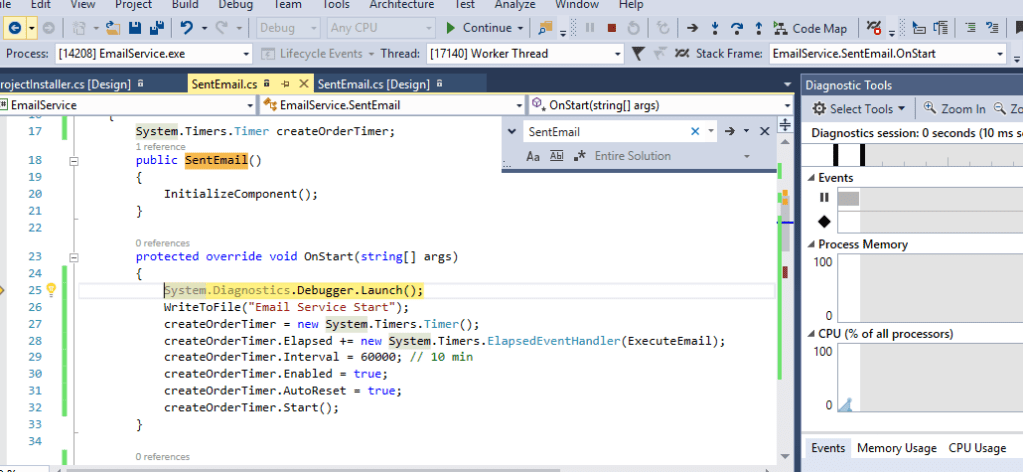
Add this line in your OnStart method

System.Diagnostics.Debugger.Launch();  

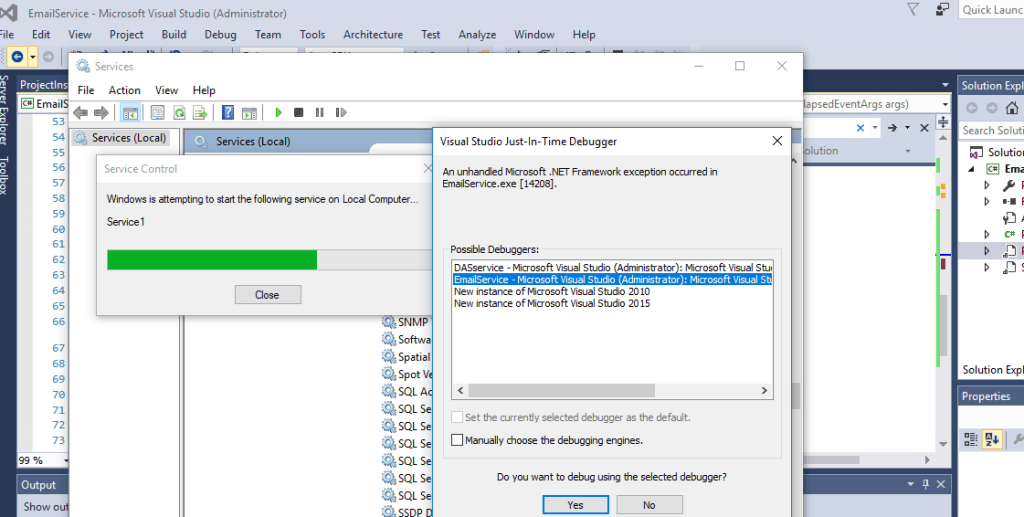
Now Compile this and reinstall this service, when starting a service a popup window will appear and ask you to select from a possible debugger list.

You can see we can easily debug Windows Service.

Microsoft Dynamics 365 CE Disable All fields With JavaScript (Read Only Form)

There is a way to disable all your fields control in form through javascript.

function disableAllFields(executionContext) {
    try {
        var formContext = executionContext.getFormContext();

        var status = formContext.getAttribute("new_status").getValue();

        if (parseInt(status) != 275380000 ) {  //completed  --> If you want to disable based on condition.
            var formContext = executionContext.getFormContext();

            formContext.ui.controls.forEach(function (control, i) {
                if (control && control.getDisabled && !control.getDisabled()) {
                    control.setDisabled(true);
                }
            });
        }
    }
    catch (err) {

    }
}

The function is now ready now you can use this function on page load, on field change event.