Step 1
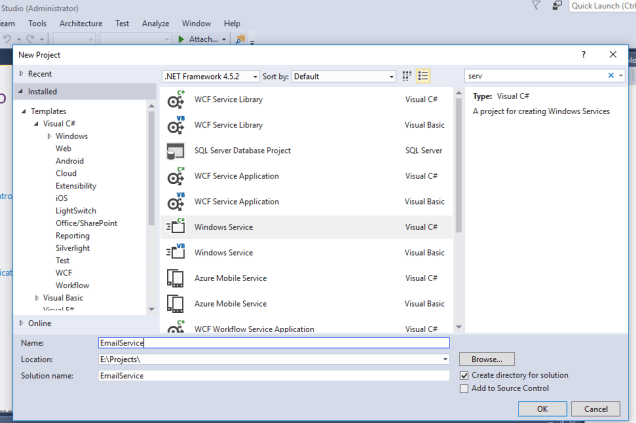
Open Visual Studio and create a new project. Under Windows Desktop select Windows Service and provide a proper name and click on the OK button.
Step 2
Rename the service1 class to a proper name. In this case I am using “SentEmail”. Click on “Click here to switch to code view”.
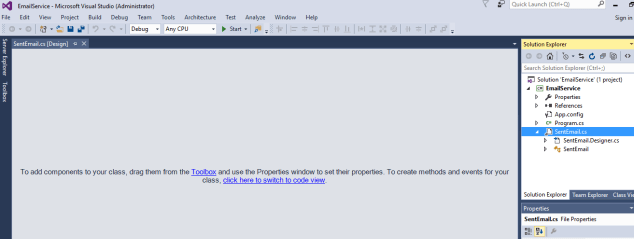
Here is the code snippet of my Sent Email Service and it will triggered after every 10 minutes.
In the timer OnStart() function first write a message to the log that the service has been started and when the service stops write to the log that the service has stopped.
using System;
using System.IO;
using System.Net.Mail;
using System.ServiceProcess;

namespace EmailService
{
    public partial class SentEmail : ServiceBase
    {
        System.Timers.Timer createOrderTimer;
        public SentEmail()
        {
            InitializeComponent();
        }

        protected override void OnStart(string[] args)
        {
            WriteToFile("Email Service Start");
            createOrderTimer = new System.Timers.Timer();
            createOrderTimer.Elapsed += new System.Timers.ElapsedEventHandler(ExecuteEmail);
            createOrderTimer.Interval = 600000; // 10 min
            createOrderTimer.Enabled = true;
            createOrderTimer.AutoReset = true;
            createOrderTimer.Start();
        }

        protected override void OnStop()
        {
            WriteToFile("Email Service Stop");
        }

        public static void ExecuteEmail(object sender, System.Timers.ElapsedEventArgs args)
        {
            try
            {
                MailMessage mail = new MailMessage();
                mail.To.Add("emailto@hotmail.com");
                mail.From = new MailAddress("emailfrom@gmail.com");
                mail.Subject = "Subject";
                mail.Body = "Body";
                mail.IsBodyHtml = true;
                SmtpClient smtp = new SmtpClient("smtp.gmail.com", 587);
                smtp.UseDefaultCredentials = false;
                smtp.EnableSsl = true;
                smtp.Credentials = new System.Net.NetworkCredential("emailfrom@gmail.com", "password");
                smtp.Send(mail);
            }

            catch (Exception ex)
            {
                WriteToFile("Service Error in Execute Email :  " + ex.Message);
            }
        }


        public static void WriteToFile(string text)
        {
            string path = "D:\\EmailServiceLog.txt";


            using (StreamWriter writer = new StreamWriter(path, true))
            {
                writer.WriteLine(string.Format(text + " " + DateTime.Now.ToString("dd/MM/yyyy hh:mm:ss tt")));
                writer.Close();
            }
        }
    }
}
Step 3
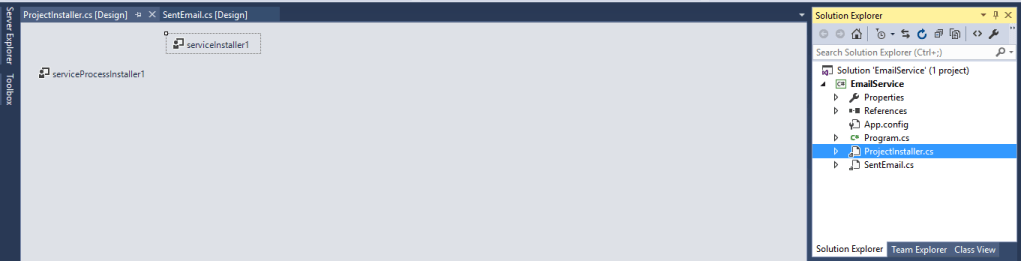
Add an installer by right click your class designer area.
Step 4
Now your Windows Service is ready. Compile this and use the following procedure to install and use this Windows Service.
Install Windows Service.
- Go to “Start” >> “All Programs” >> “Microsoft Visual Studio 2015” >> “Visual Studio Tools” . Click “Developer Command Prompt for VS2015”.
Type the following command:
cd <physical location of your EmailService.exe file>
In my case it is:
cd E:\Projects\EmailService\EmailService\bin\Debug> - To Install type the following command:
InstallUtil.exe “EmailService.exe”
And press Enter.
Step 5
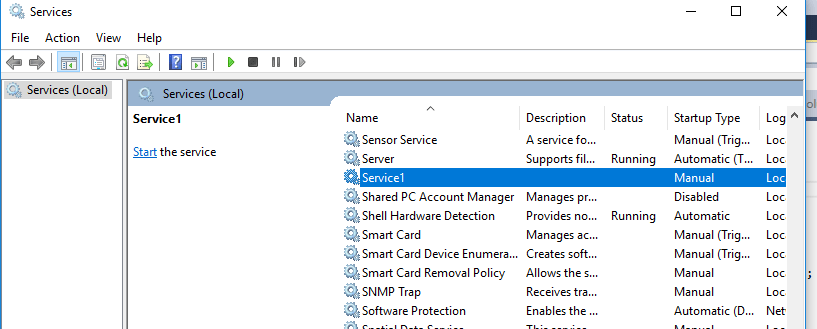
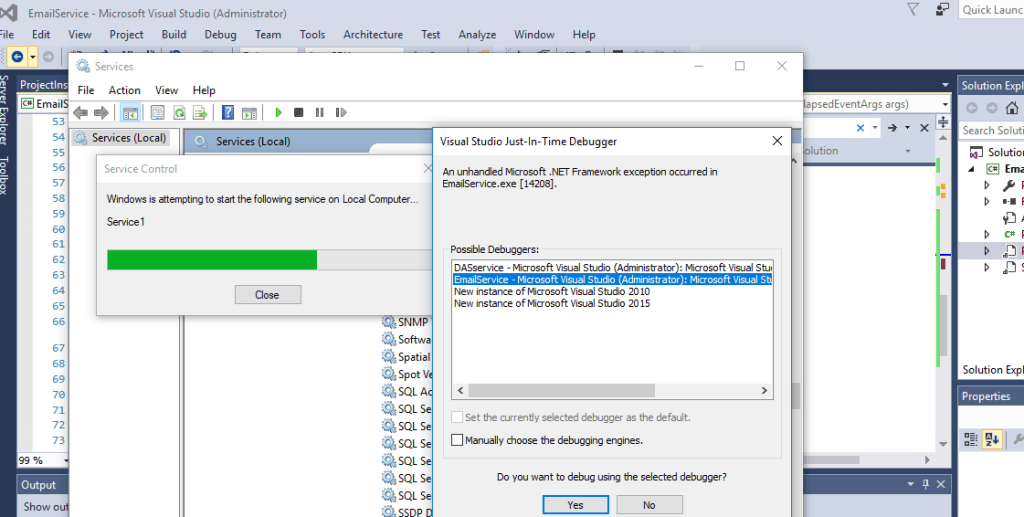
Now go to Services and find the service of your project name and start that service.In my case it Service1.
Uninstall Window Service
You can also uninstall this service by using the following command
InstallUtil.exe /u EmailService.exe
Debug Window Service
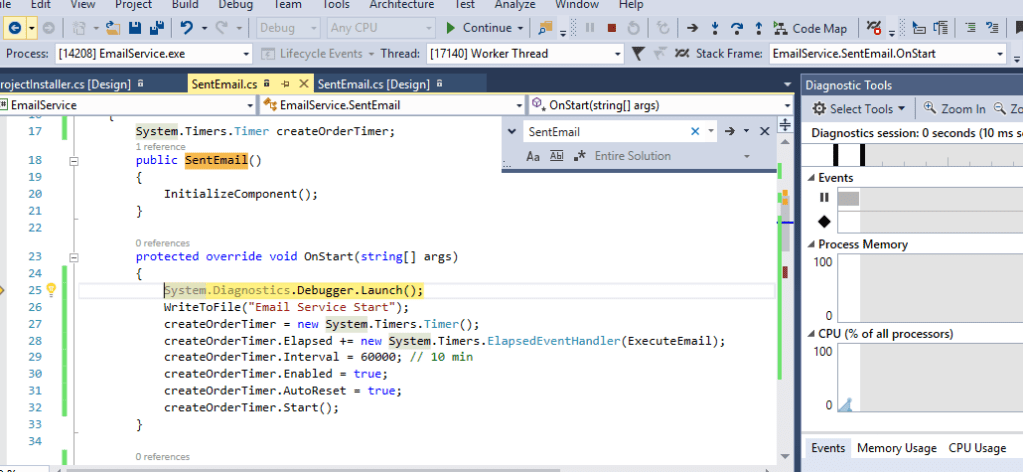
Add this line in your OnStart method
System.Diagnostics.Debugger.Launch();
Now Compile this and reinstall this service, when starting a service a popup window will appear and ask you to select from a possible debugger list.
 MS Dynamics 365 CE, Power Platform, Azure & Dot Net Technologies